Report
Review a finished print in one printable summary of its defects, heatmaps, alerts and comments.
The Report tab sums up a finished print on one page that you can read on screen, print or save as PDF. It appears once the print has completed.
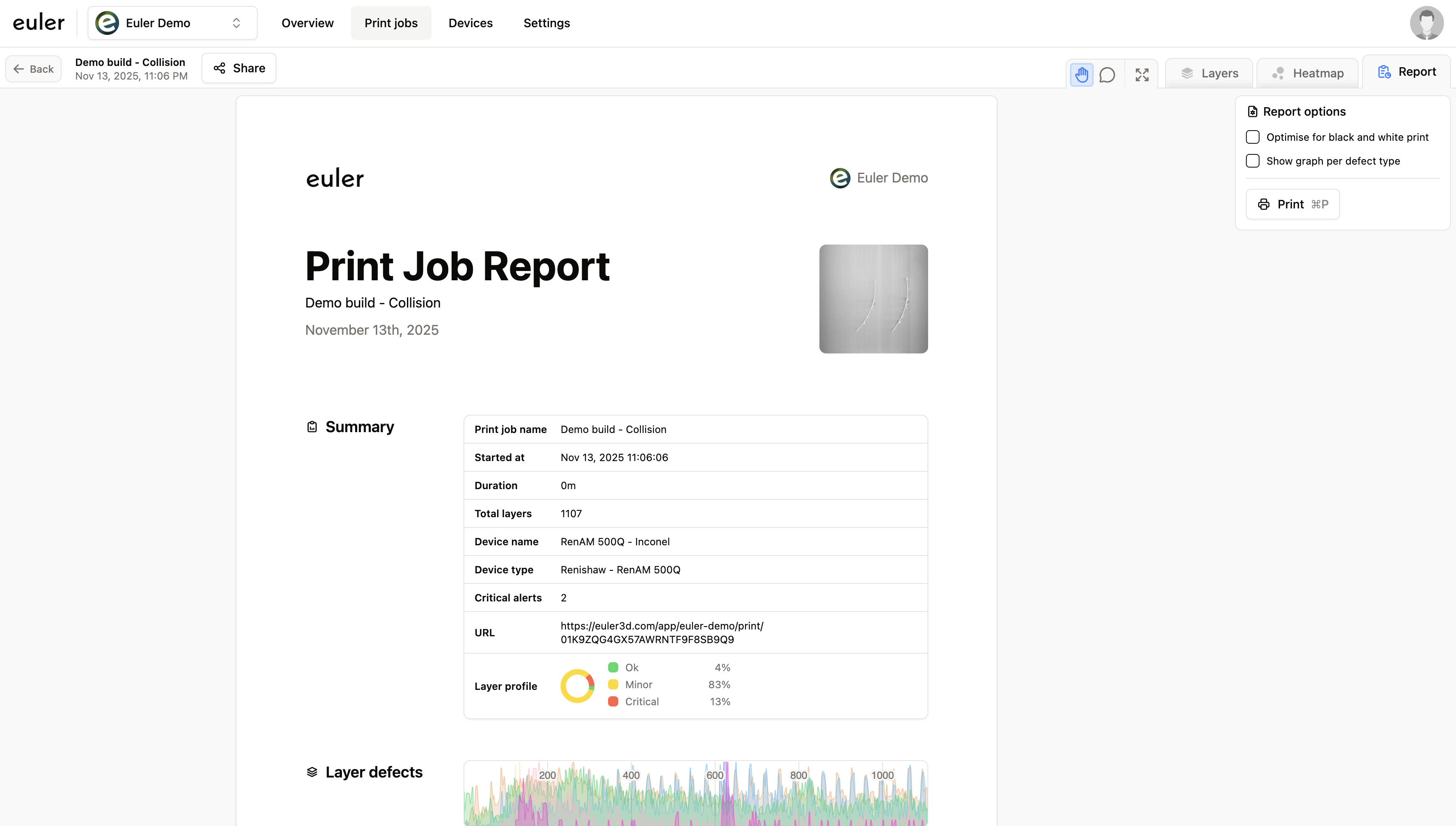
What the report contains
Summary
Key facts about the print: name, start time, duration, number of layers, device, tags, the number of critical alerts, a link to the print, and the Model ID. The Layer profile ring shows the share of layers rated OK, Minor defect, Critical defect and Laser in image (see Layer status bar).
If you narrowed the report to some layers or to defects on the parts, the summary says so with Layers reported and Defects reported, so a printed copy explains itself.
Layer defects
The frequency plot for the reported layers, with the layer status bar and a table of figures for each defect type.
Heatmaps
Heatmaps of key defect types, showing where on the plate they occurred.
Alerts and comments
Every alert raised during the print, with when it started and how it was resolved, and every comment left on the print.
Outlier analysis
How the print compared in one of its outlier analyses: its deviation, which defect types differ from the group, and a link back to the full analysis. Click Add outlier analysis and pick an analysis, or choose Compare with other builds… to start a new one. Use Change to pick another, or × to remove it. Everyone who opens the report sees the same analysis. Until you add one, the section is left out of the printed report.
Choosing what the report shows
Use the sidebar to change what the report shows.
Data
- The layer range at the top: drag the handles, or type the first and last layer in the boxes below it, to report on part of the build.
- Aggregate: plot Occurrences (number of defects per layer) or Largest defect area (size of the biggest defect per layer). These are the same two views as Occurrences and Max area on the frequency plot.
- Only defects on part: leave out defects on the powder bed.
- Critical layers only in heatmaps: build the heatmaps only from layers marked Critical defect.
Display
- Black-and-white printing
- One graph per defect type
Click Print in the sidebar, or press Ctrl + P (⌘ + P on Mac), to print the report or save it as PDF.
Defaults for your organization
The options start from your organization's defaults. To change them, click Manage report defaults in the report sidebar or go to SettingsReports. There you can set Use only defects on part, Use critical layers only in heatmaps, Layer aggregate, and both display options. Changes in the report sidebar only affect the report you are looking at.
Getting the report by email
Members can get an email when a print completes, with its layer profile and a link straight to the report. Euler sends it shortly after the last layer arrives. Turn on Print job complete in your notification settings. If your organization uses Slack, the same notice can be posted there.