Image tools
Use the toolbar to pan, comment, and arrange the recoat and exposure images.
The toolbar above the layer images controls how you move around the images and how they are laid out. Hover over any button to see its name.
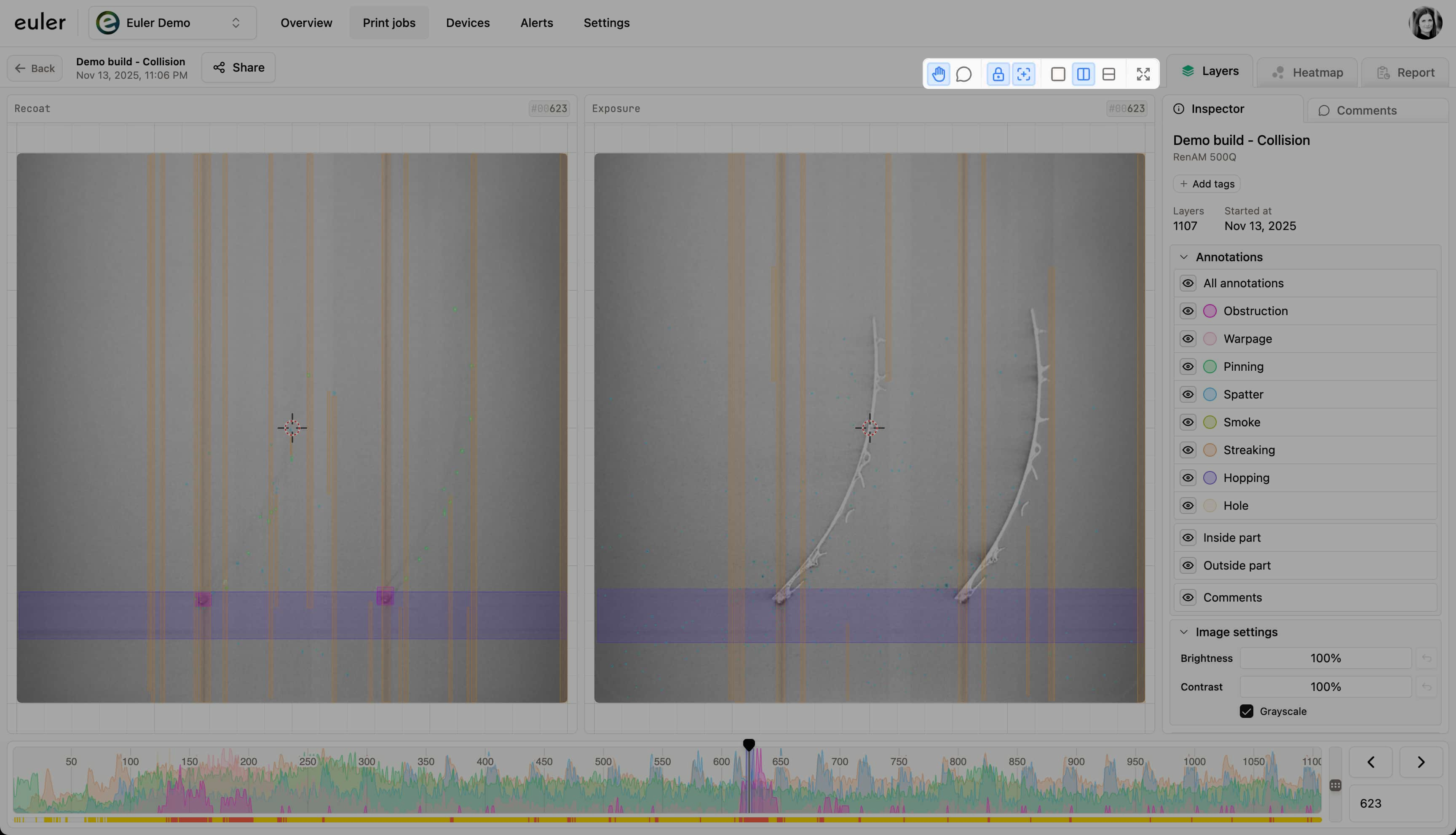
Hand tool
Use the Hand tool to pan and zoom the images. This is the normal way to move around. Press H to select it, or hold Space to use it for a moment while another tool is selected. You can also pan with the middle mouse button.
Comment tool
Use the Comment tool to click a spot on a layer image and leave a comment pinned to it. Press C to select it.
Layout
Choose how the recoat and exposure images are arranged:
- Single view: one image at a time. Use the R and E buttons, or press S, to switch between the recoat and exposure image.
- Dual view - side by side: both images next to each other.
- Dual view - stacked: both images, one above the other. Useful on tall screens or for wide build plates.
Press 1, 2 or 3 to switch between the three layouts.
Link views
In the dual views, panning and zooming one image moves the other one with it. Click Unlink views to move each image on its own, for example to look at different areas of the recoat and exposure images. Click Link views to tie them together again.
Show cursor
When Show cursor is on, a crosshair follows your pointer in both images so you can find the same spot in each. Turn it off with Hide cursor when it covers fine detail.
Fullscreen
Enable fullscreen fills the screen with the viewer, giving you more room to inspect details. Disable fullscreen, or press Esc, to go back.
Help
The Help button opens a menu with Documentation (the docs page for the tab you are on), Keyboard shortcuts, and Walkthrough, a short guided tour of the print viewer.
On a phone or small screen, these tools are in the drawer that opens from the info button.