Defect types
The defect types Euler marks on layer images, what they look like and what they mean.
Euler marks defects on the recoat and exposure images of every layer. Each defect type has its own color, shown in the Annotations list in the print viewer sidebar. This page explains what each type means, so you can judge what you are looking at.
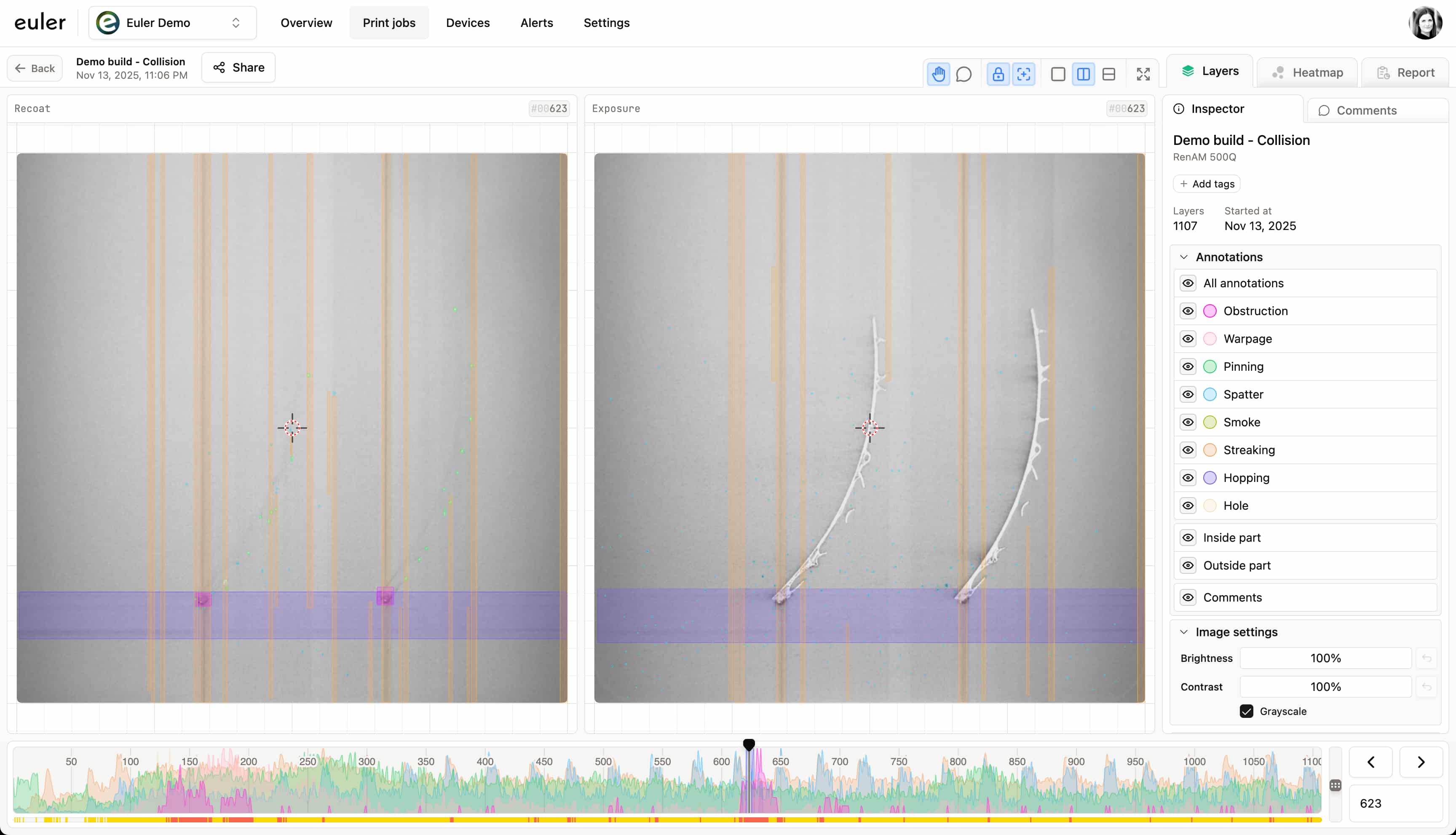
Defect types
Seen on tells you which image the defect type is marked on. The recoat image is taken after the recoater spreads fresh powder; the exposure image is taken after the laser has melted the layer.
| Example | Defect type | Seen on | What it means |
|---|---|---|---|
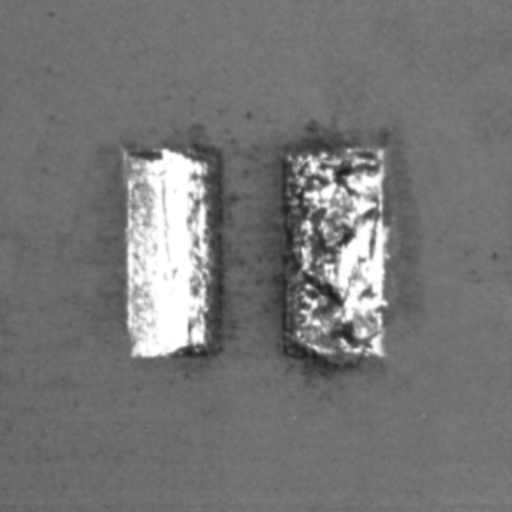 | Obstruction | Recoat | Part of the build sticks up into the recoater's path. The recoater can collide with it and be damaged. Marked with a hatched box. |
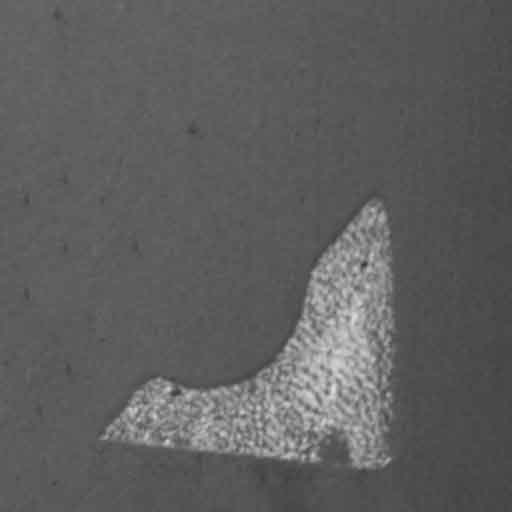 | Warpage | Recoat | The part has deformed, usually from thermal stress, overheating or difficult geometry such as overhangs. |
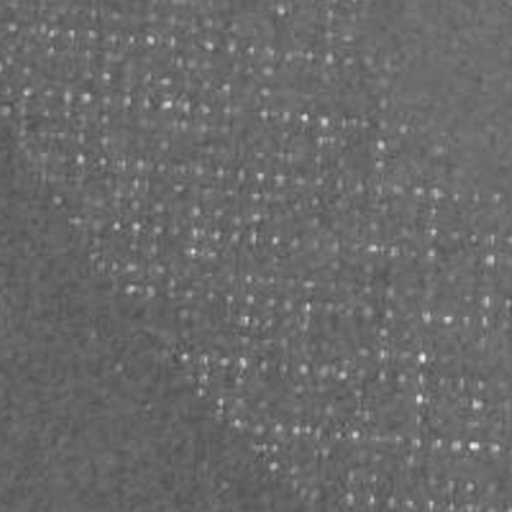 | Pinning | Recoat | Small spots of metal showing through the fresh powder, often from local overheating, edges or supports. |
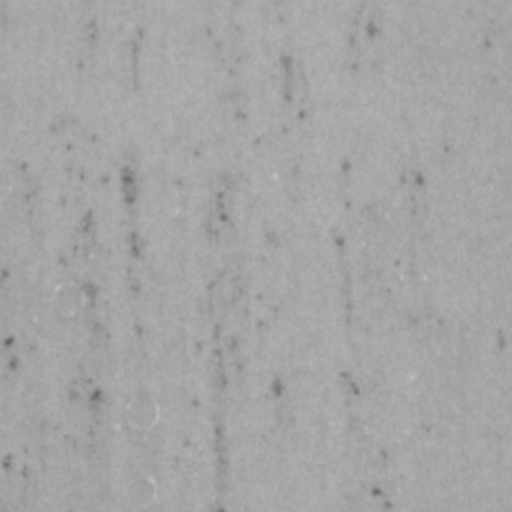 | Spatter | Recoat and exposure | Particles thrown out of the melt pool land on the powder bed and can cause porosity or inclusions. |
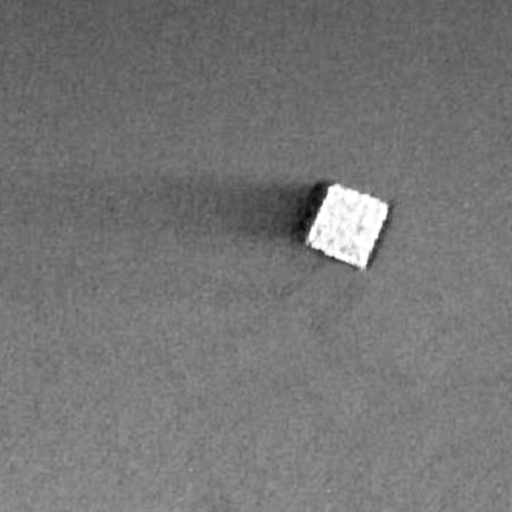 | Smoke | Recoat and exposure | Smoke or plume over the build, from heavy spatter, overheating or poor gas flow. |
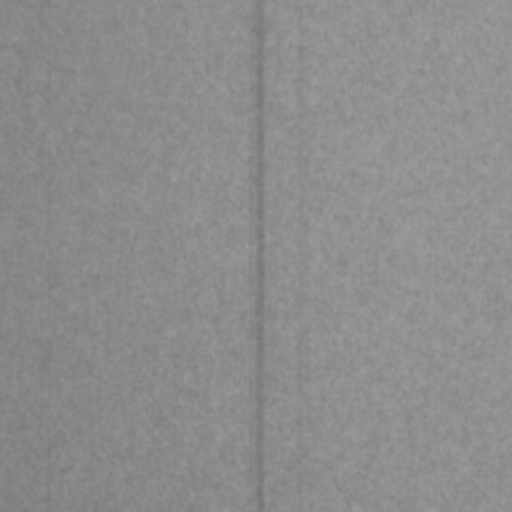 | Streaking | Recoat and exposure | Lines or grooves in the powder bed along the recoating direction, usually from a damaged or contaminated recoater. |
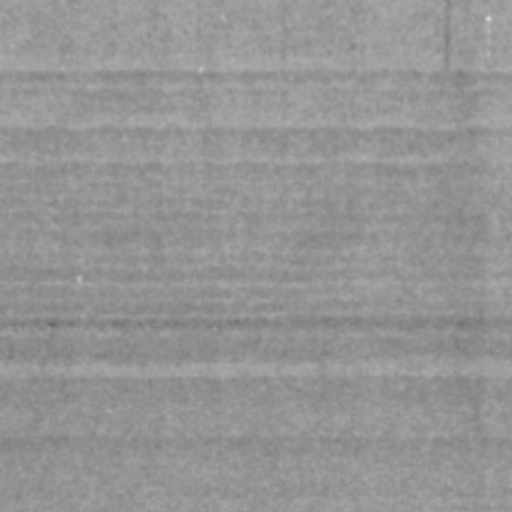 | Hopping | Recoat and exposure | A repeating ripple pattern across the powder bed, left when the recoater bounces or chatters after hitting a raised area. |
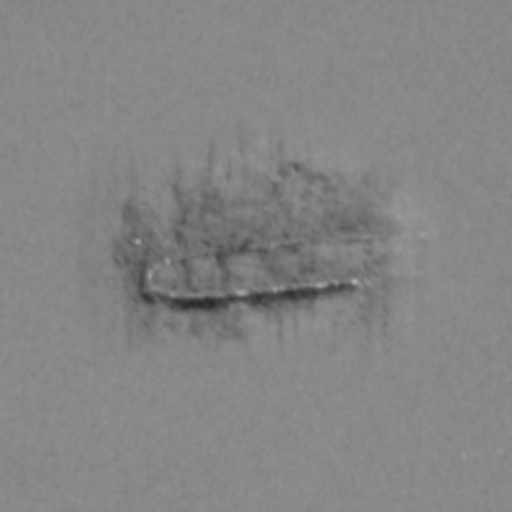 | Hole | Recoat and exposure | An area with too little powder, for example from short feeding. It can leave weak or unfused spots when the layer is melted. |
Hover over a defect type in the Annotations list to see an example of it.
Showing and hiding defect types
All defect types are shown when you open a print. To hide some of them, or to look at one type on its own, use the eye icons in the Annotations list. See Defect annotation toggle.
Streaking has a Persistent only switch next to its name. Turn it on to hide streaks that don't carry on over consecutive layers, so only the persistent ones are left. The switch is greyed out for devices where Euler doesn't know the recoating direction. An admin can set it with Recoat direction override in the device settings.
Related
- Layer status bar: how each layer is rated
- Defect heatmaps: where on the plate each defect type occurs