Shop-floor dashboards
Show the live state of your devices on a wall screen with a dashboard link.
A dashboard is a full-screen view of your devices for a screen on the shop floor or in the office. It shows what each device is printing and flashes a warning when Euler finds a defect. You open it with a secret dashboard link, so the screen doesn't need anyone signed in.
Available on paid plans, once Euler has turned it on for your organization; contact Euler to get started. Only organization admins can create and revoke dashboard links.
Create a dashboard
Open the dashboard settings
Open SettingsDashboards and click Create dashboard.
Fill in the details
- Dashboard name: for example the hall or screen it is for.
- Expires on (optional): a date after which the link stops working.
- Theme: Light or Dark.
Under Filters, choose which devices appear:
- By devices: only show the devices you pick.
- By device types: only show devices of the types you pick.
- Show disabled devices, Show idle devices and Show offline devices: turn these off to keep the screen to the machines that matter.
Click Create.
Copy the link
Euler shows Your new dashboard link. Click Copy link to dashboard and open it in the browser on your display screen. Put the browser in full-screen mode.
Anyone with the link can see the dashboard without signing in. Treat it like a password: share it only with trusted people and screens, and revoke it straight away if you think it has leaked.
What the dashboard shows
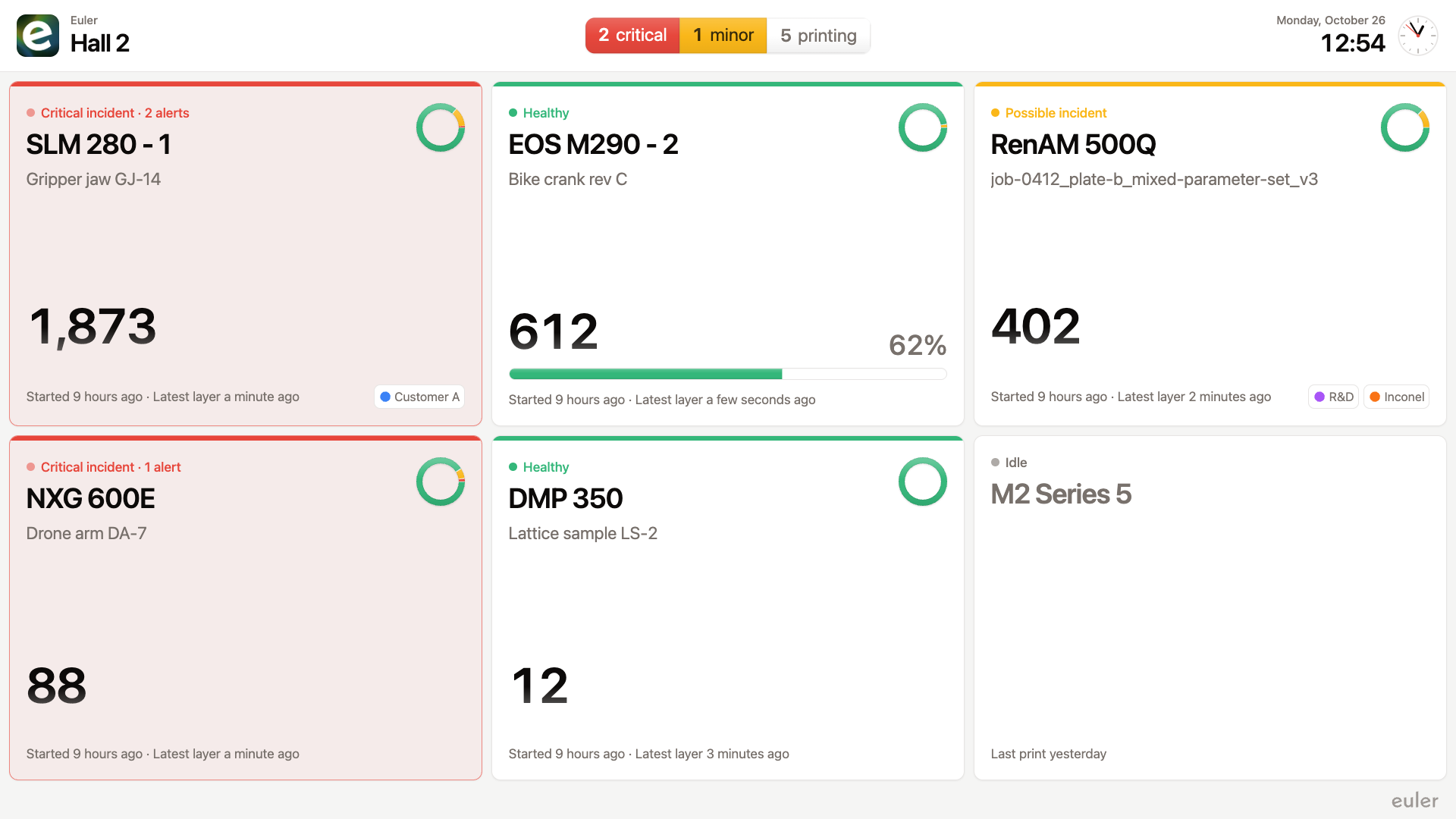
- At the top: the current time and how many devices are active, and how many have a critical or minor defect.
- A card for each device with its state, the current print, its progress, the current layer and when the latest layer arrived. With three devices or fewer, the cards also show the latest image.
- When there are more devices than fit, the dashboard turns to the next page every 15 seconds. Use the arrows to page by hand.
- When a device gets a critical or minor defect, the whole screen shows a warning with the device and print name, then jumps to the page with that device.
Manage dashboard links
SettingsDashboards lists your dashboards, one row each, with its name, when its link expires and the link itself. On a row:
- Click the copy button to copy the link, or the open button to open the dashboard.
- Click Edit to change the dashboard's settings.
- Open the row's menu and click Revoke link. Revoking disables the dashboard immediately.
Turn on Show revoked links to see old links.
To change what an existing screen shows, edit the dashboard instead of making a new one. The link stays the same, and screens that already have it open pick up the new settings within a few minutes, without a reload.