Slack notifications
Send critical defects, finished prints and offline devices to Slack channels.
Connect your Slack workspace to Euler and choose which channels receive which notifications. A channel for the shop floor might get only critical defects, while a team channel gets every finished print.
Available on paid plans, once Euler has turned it on for your organization; contact Euler to get started. Only organization admins can set up Slack. Slack isn't available on installations that your company runs itself.
Slack messages are sent in addition to the emails each member chooses in Notifications. Turning a channel on or off doesn't change anyone's emails.
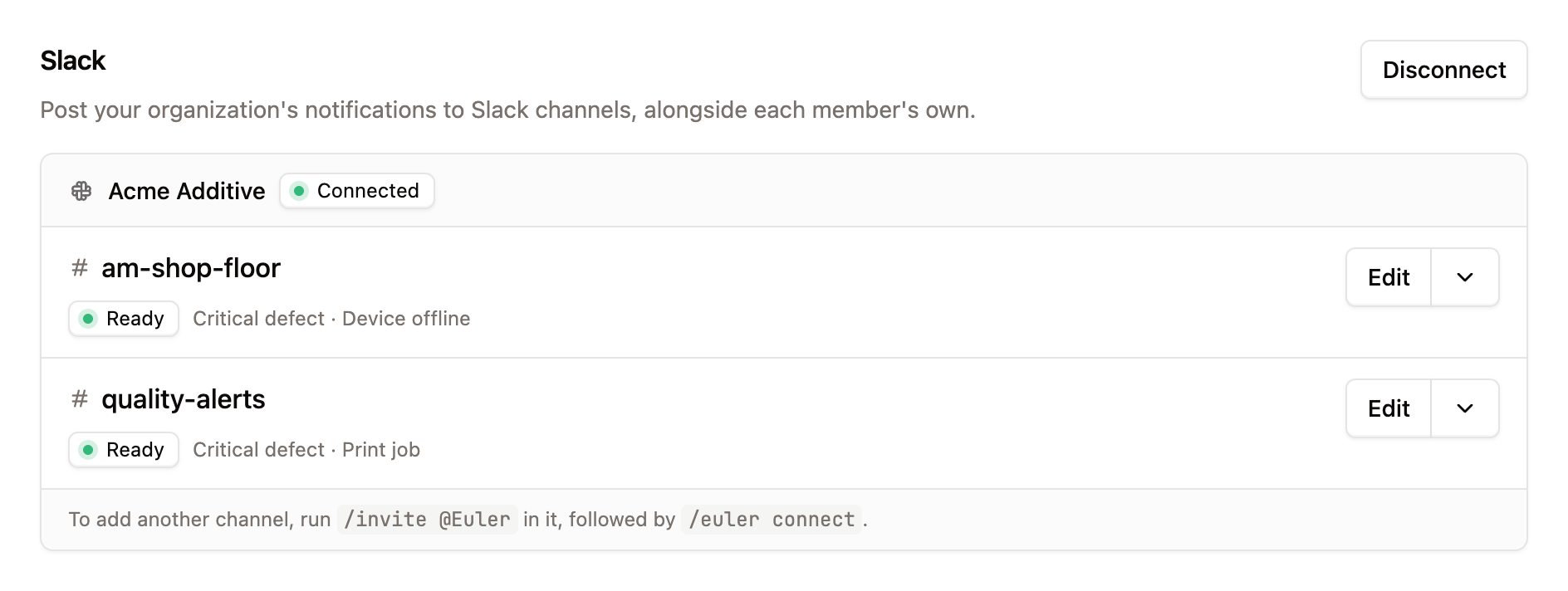
Set up Slack
Connect your workspace
Open SettingsIntegrations & API and, under Slack, click Connect workspace. Slack asks you to allow Euler in your workspace. When you return, Euler shows Slack workspace connected.
Add a channel
In Slack, open the channel you want to use and run /invite @Euler. Then run /euler connect and
follow the link back to Euler.
Euler posts a test message to the channel and only adds it if the message arrives.
Choose what the channel receives
The new channel opens for editing. Under What should it receive?, check any of:
- Critical defect in print job
- Print job complete
- Device offline
Add a Description if it helps your team tell channels apart, then click Save.
Messages can include machine names, layer numbers and defect details. Check that everyone in the channel, including people from other companies, should see them.
Channels are independent: several channels can receive the same notifications.
Manage channels
Each channel shows what it receives and its status. Use the actions on its row to:
- Edit what it receives or its description.
- Test connection to post a test message.
- Remove it. Euler stops posting to it.
If a channel shows Last send failed, add Euler to the channel in Slack again, then send a test. Receives nothing means no notifications are routed to the channel yet.
Offline devices in Slack
When devices go offline, Euler posts one message for the outage rather than one per machine:
- For one device, the message names the device and its model, and says since when it hasn't sent data to Euler.
- For several devices, it says how many are offline and lists each one with its model and the time it went offline.
The message has a View devices button that opens SettingsDevices & Datasources. The reminders follow the organization's offline reminders.
Disconnect or reconnect
Click Disconnect to stop Euler posting to any of your organization's Slack channels. If the workspace shows Connection broken or Connection deactivated, click Reconnect workspace.