Device monitoring
Check what each printer is doing, how much it is used, and whether its live connection is healthy.
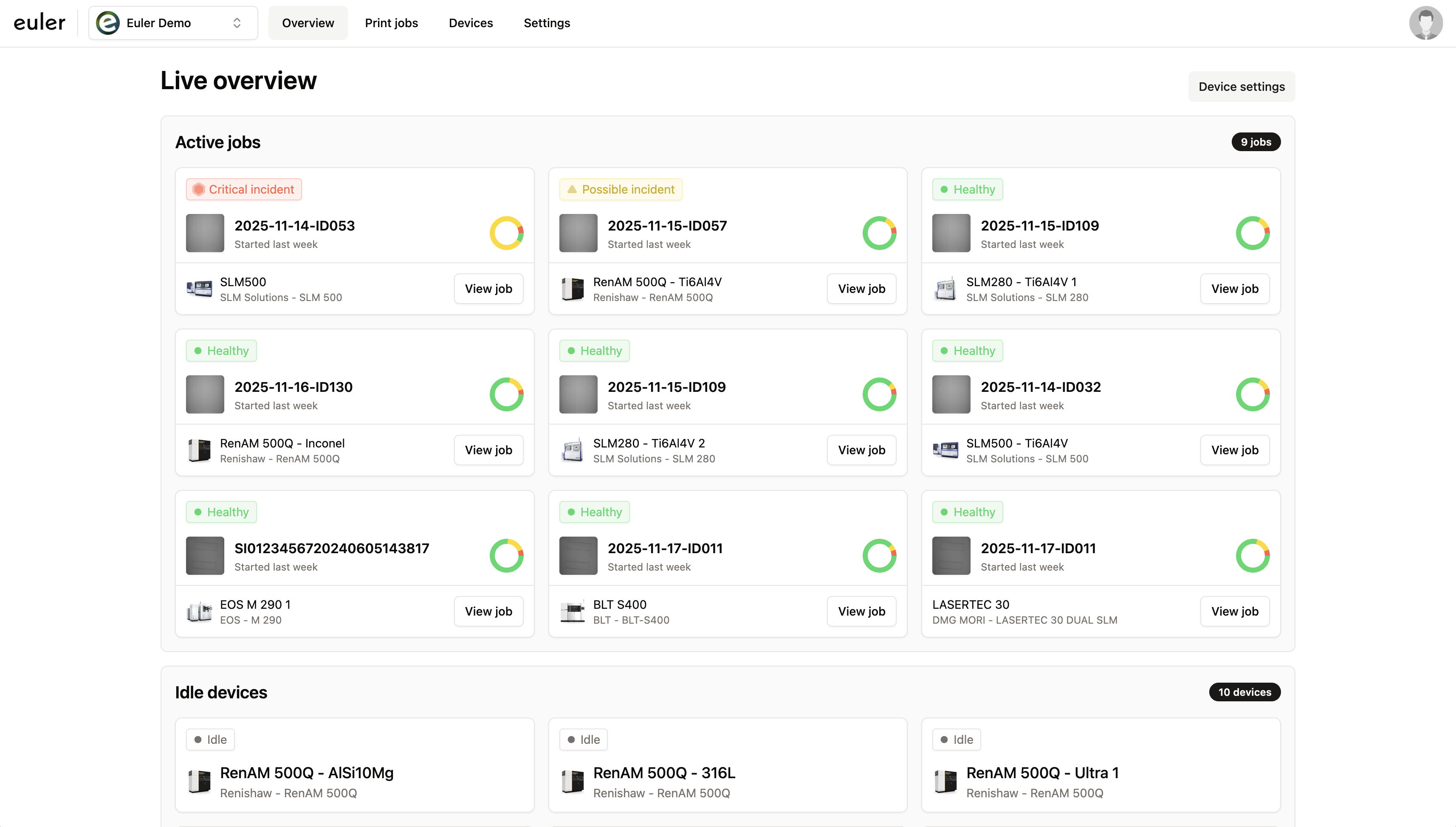
Euler shows the state of your devices in three places: Active jobs on the Overview page, the Devices list, and each device's own page.
Device cards on the Overview
Active jobs on the Overview page has a row for each device that is printing. Each row shows the device's state:
- Healthy: printing, with no defects of concern.
- Possible defect: printing, with minor defects.
- Critical defect: printing, with a critical defect.
- Laser in image: printing, with the laser visible in the layer image.
- Offline: Euler Connect is not checking in.
The row also shows the latest exposure image, the layer the print has reached and when it arrived. Click the row to open the print in the viewer.
Following a live print
When you open a print that is still running, the print viewer can move to each new layer as it arrives. Turn this on or off with the play button in the viewer toolbar.
The Devices list
Open Devices in the sidebar to see every device in a table. Search by name, or switch between All, Enabled and Disabled devices. Each row shows:
- The device name and its type.
- Datasource: the computer name of its Euler Connect, with its connection status.
- Activity: a small chart of layers per day over recent weeks, and the layer profile of its builds.
Click a device name or Open to go to the device's page.
A device's page
The header shows the device name and type. If the device has a connection problem right now, a chip next to the name says so, for example Offline for 3 hours or Not receiving data for 20 minutes. Click it to see the connection history. Admins see Settings, which opens the device settings, and anyone who can upload sees Upload print job.
The page has two tabs, Usage and Connection. It opens on Connection when there is a problem right now, and on Usage otherwise.
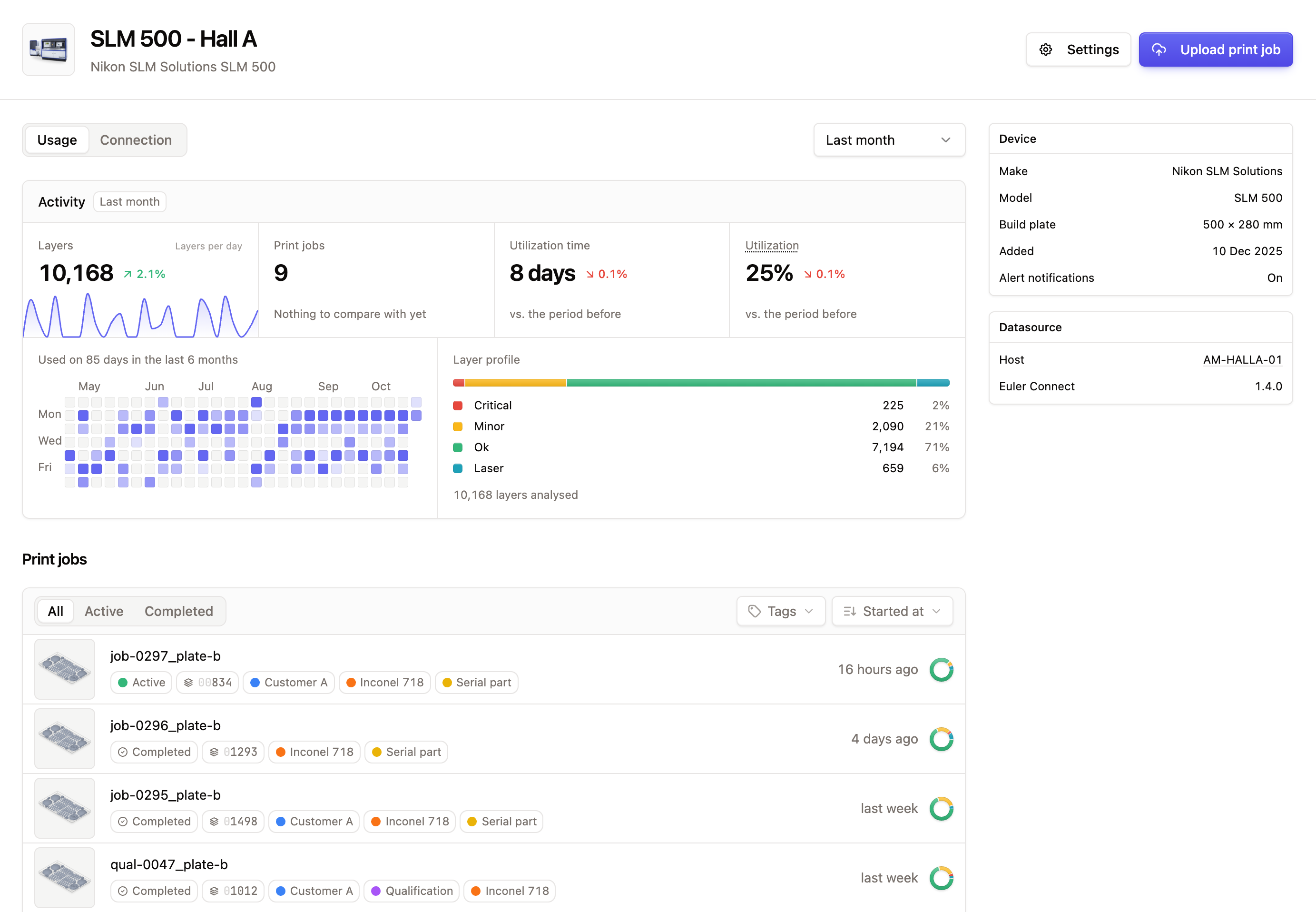
A column on the right shows details about the device:
- Device: make, model, build plate size, when it was added, and whether Alert notifications are on or silenced.
- Datasource: the Euler Connect computer, the watcher and the folder it watches. If the device has no datasource, the card says so.
- Next steps: for admins, what is left to set up, such as Connect a datasource or Set up perspective correction.
Usage
Pick Last month, Last 6 months or Last year. The Activity card shows, for that period and compared with the period before:
- Layers and Print jobs.
- Utilization time and Utilization: how much of the time the device was printing.
- On which days the device was used over the last 6 months.
- Layer profile: the share of layers that were OK, Minor defect, Critical defect or Laser in image.
Under that, Print jobs lists every print from this device. Click Upload print job at the top to upload a print job to this device.
Connection
Shown for devices connected through Euler Connect. Pick Last 7 days, Last 30 days or Last 90 days. You see:
- Availability: the share of time the device was connected.
- Outages: how many times it was not.
- Longest outage.
- Last layer: when Euler last received a layer.
The Layers received chart shows how many layers arrived over time. Colored bands behind the bars mark when the device was Offline or Not receiving data. Hover over the chart for the details of each period.
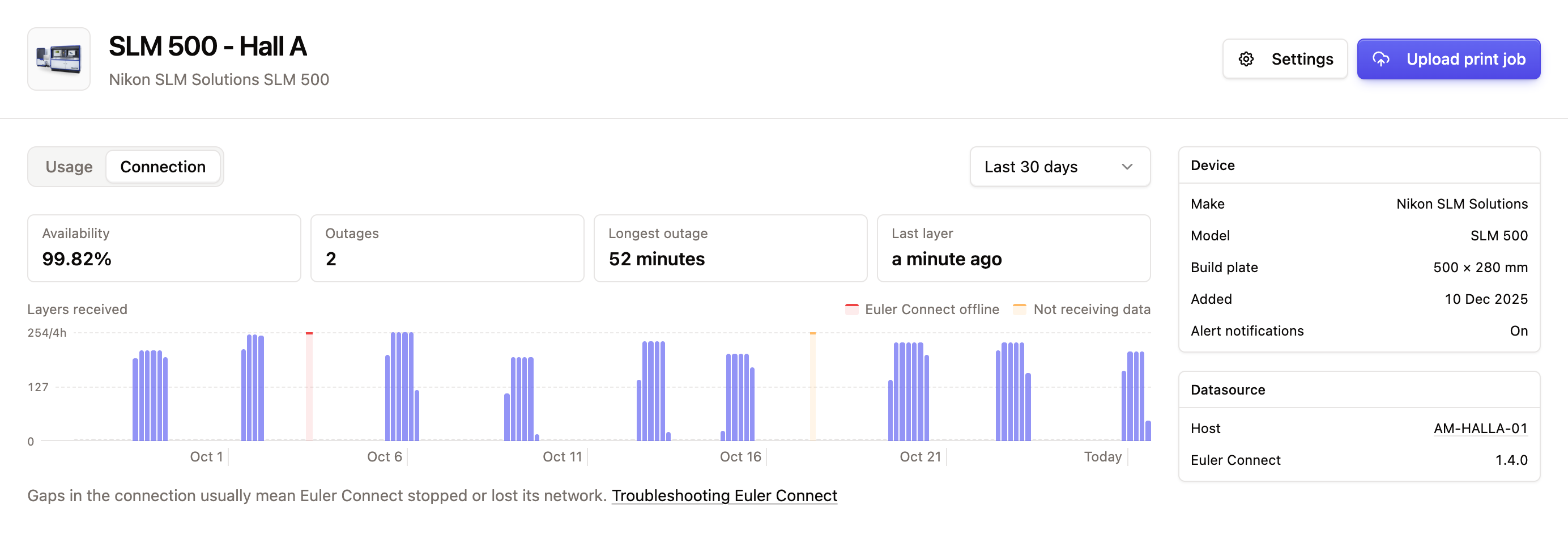
If you see an outage, see Troubleshooting Euler Connect.