Editing a device
Change a device's name, type, viewer orientation and other settings, or delete it.
A device is a printer as Euler knows it. Its settings decide how Euler reads and shows the builds it receives from that printer.
Only organization admins can create, edit, disable and delete devices. Members can see devices and upload prints to them.
Edit a device
Go to SettingsDevices & Datasources and click Edit next to the device. You can also click Settings on the device's own page. Change what you need and click Save.
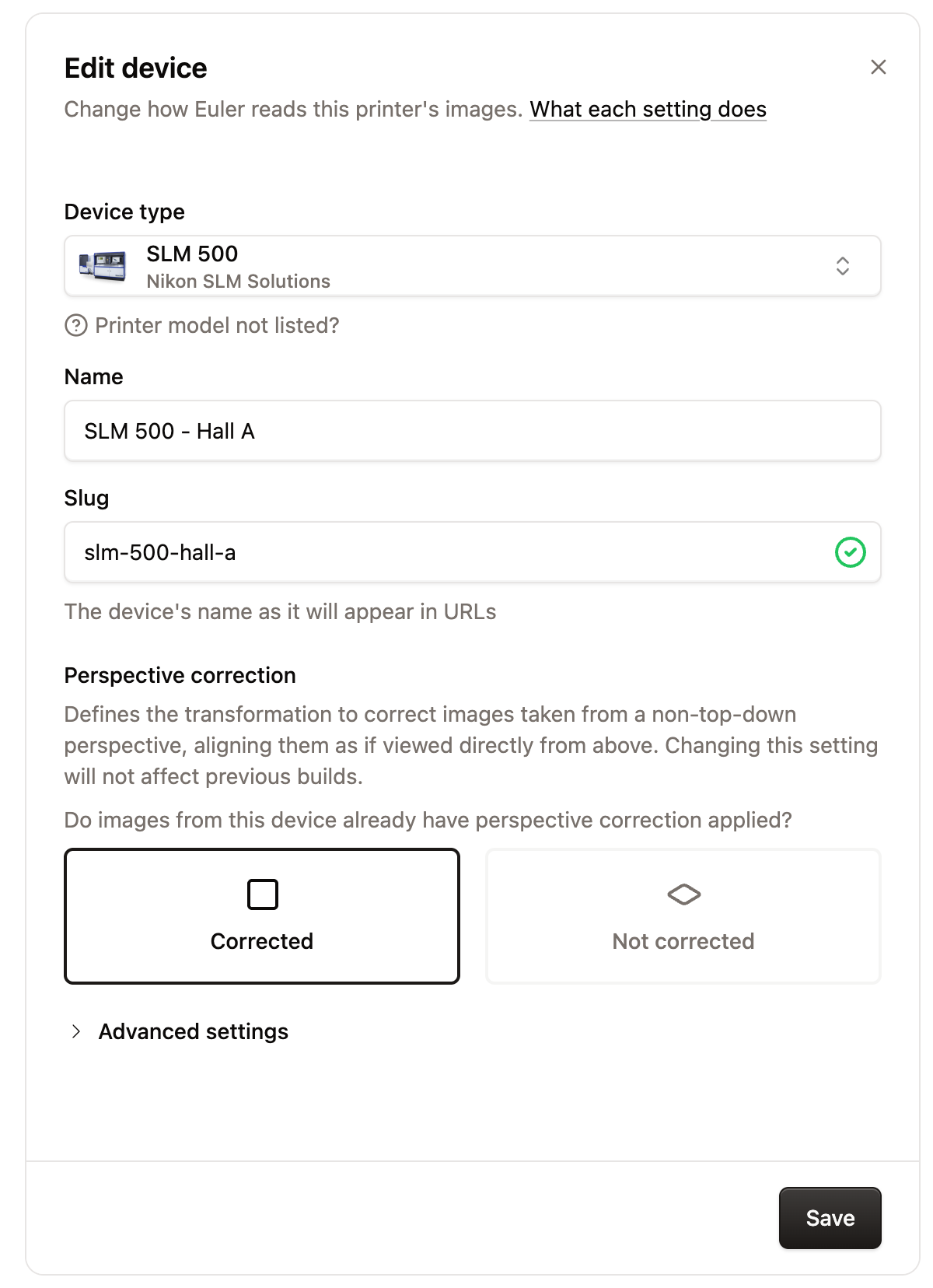
- Device type: the printer's manufacturer and model. If yours is not in the list, click Printer model not listed? (see Device requests).
- Name: how the device appears across Euler.
- Slug: the device's name as it appears in links. It must be unique in your organization.
- Perspective correction: whether images from this device need correcting so the build plate is seen straight from above. Choose Corrected if the printer already does this, or Not corrected and click Configure correction. See Perspective correction.
Under Advanced settings:
- Disable critical alert notifications: when checked, no notifications are sent for critical alerts on this device's prints. Alerts still appear in Euler.
- Viewer orientation: rotates layer images and annotations in the print viewer (Original, 90° Clockwise, 180° or 90° Counterclockwise). It only changes how images are shown.
- Recoat direction override: the direction the recoater moves across the layer image. Leave it on Default unless Euler support tells you otherwise. Horizontal means streaks show as horizontal stripes on the layer image; Vertical means vertical stripes.
Changes to the device type and perspective correction apply to prints from now on; prints that were already uploaded do not change. Viewer orientation applies to every print of the device, old and new.
Link a device to Euler Connect
A device gets its live data through a connection on a datasource (an Euler Connect installation), not through the device form. To link a device, open the datasource in SettingsDevices & Datasources and click Connect device. See Datasources and Setting up Euler Connect.
The Datasource column in the devices table shows which Euler Connect a device is linked to and whether it is connected. A device without one shows Not connected.
Disable or enable a device
Open the menu next to Edit in the devices table and choose Disable or Enable. A disabled device collects no data until you enable it again, and its row shows Disabled. Each enabled device uses one of your organization's licenses. Device licenses at the top of the page shows how many are in use, for example 2 of 3 in use. If you have no licenses left, disable a device before you enable another.
Delete a device
In SettingsDevices & Datasources, open the menu next to Edit and choose Delete. Euler shows Device "…" deleted with an Undo button. Click it straight away to bring the device back.
You can also delete a device from the Devices page. Euler asks you to confirm with Confirm and delete, and there is no Undo button afterwards. If you deleted a device by mistake, contact Euler.
Device requests
If your printer model is missing from Device type, click Printer model not listed? under it. See Requesting support for a new device.
Your requests appear on the Overview page under Device requests, with the status Pending, Added or Rejected. When a request is Added, click Set up under it to create a device of the new type. Click the dismiss button to remove a request from the list.