Setting up perspective correction
Line up the camera image with the build plate so Euler shows defects in the right place.
Most printer cameras look at the build plate from an angle, so the plate shows up as a slanted shape in the image. Perspective correction straightens the image so you see the plate as if from directly above. Euler then shows layers, parts and defects in the right place on the plate.
You set it up once per device by marking the four corners of the build plate on a sample image. Every layer the device uploads after that is corrected the same way.
Only organization admins can set up or change perspective correction. If a device needs it and you are a member, ask an admin.
Where to start
- When creating or editing a device: under Perspective correction, choose Not corrected and click Configure correction (or Edit correction to change an existing one).
- While uploading a print: if the device has no correction yet, the upload shows Perspective correction missing. Pick a layer where the plate edges are clear and click Set up using current layer. Euler shows you the layer next to an example and asks Are the build plate edges visible? Click Build plate edges visible to continue, or Pick another layer.
If your printer already corrects its images, choose Corrected instead and skip the rest.
Set up the correction
Upload a sample
Drag a layer image into the window, or click Choose image. Use a recoat image from this device's camera where all four plate edges are clearly visible, taken the same way as the layers you upload. A bare build plate works best. If no layer shows the edges, take a picture with the device camera that does.
When you start from an upload, Euler uses the layer you picked as the sample.
Place the corners
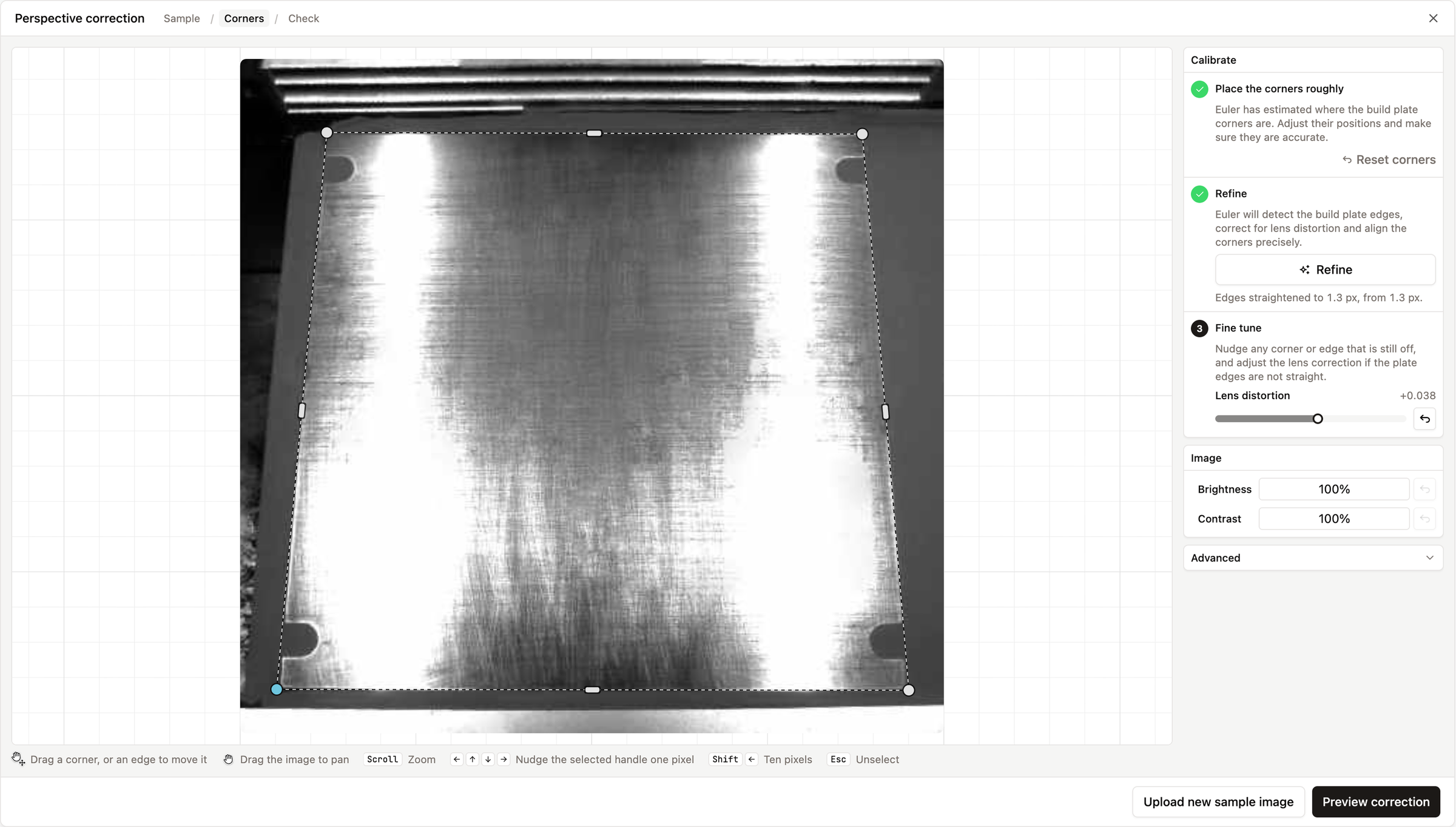
Euler suggests where the build plate corners are. Drag each corner near its plate corner; close is enough. Then click Refine, and Euler finds the plate edges and places the corners precisely.
Fine-tune any corner or edge that is still off:
- Drag a corner, or an edge to move it.
- Drag the image to pan, and scroll to zoom.
- Use the arrow keys to nudge the selected corner. Hold Shift to move it further.
- If the plate edges look curved, adjust Lens distortion until they are straight.
- Brightness and Contrast make the edges easier to see. They do not change your images.
Click Reset corners to start over, or Upload new sample image to use a different image.
Check the result
Click Preview correction. Euler shows the camera image next to the corrected one. The plate should fill the corrected view with straight, square edges. If it does not, click Back and adjust the corners.
Save
Click Save correction and confirm. If you are editing the device, also click Save in the device form.
Change or remove the correction
Open the device in SettingsDevices & Datasources. Under Perspective correction, click Edit correction to place the corners again, or Remove to turn correction off. During an upload you can also click Adjust on the Perspective correction card.
Changes apply to prints uploaded from then on. Prints that were already uploaded are not changed.