Datasources and connections
See each Euler Connect installation, when it last checked in, what it still has to send, and which devices it watches.
A datasource is one Euler Connect installation, on one workstation. Each datasource has connections: the devices it watches and how it reads their images. You find datasources in SettingsDevices & Datasources, under the devices.
Everyone in the organization can see datasources. Only organization admins can create, change or delete them.
The status card
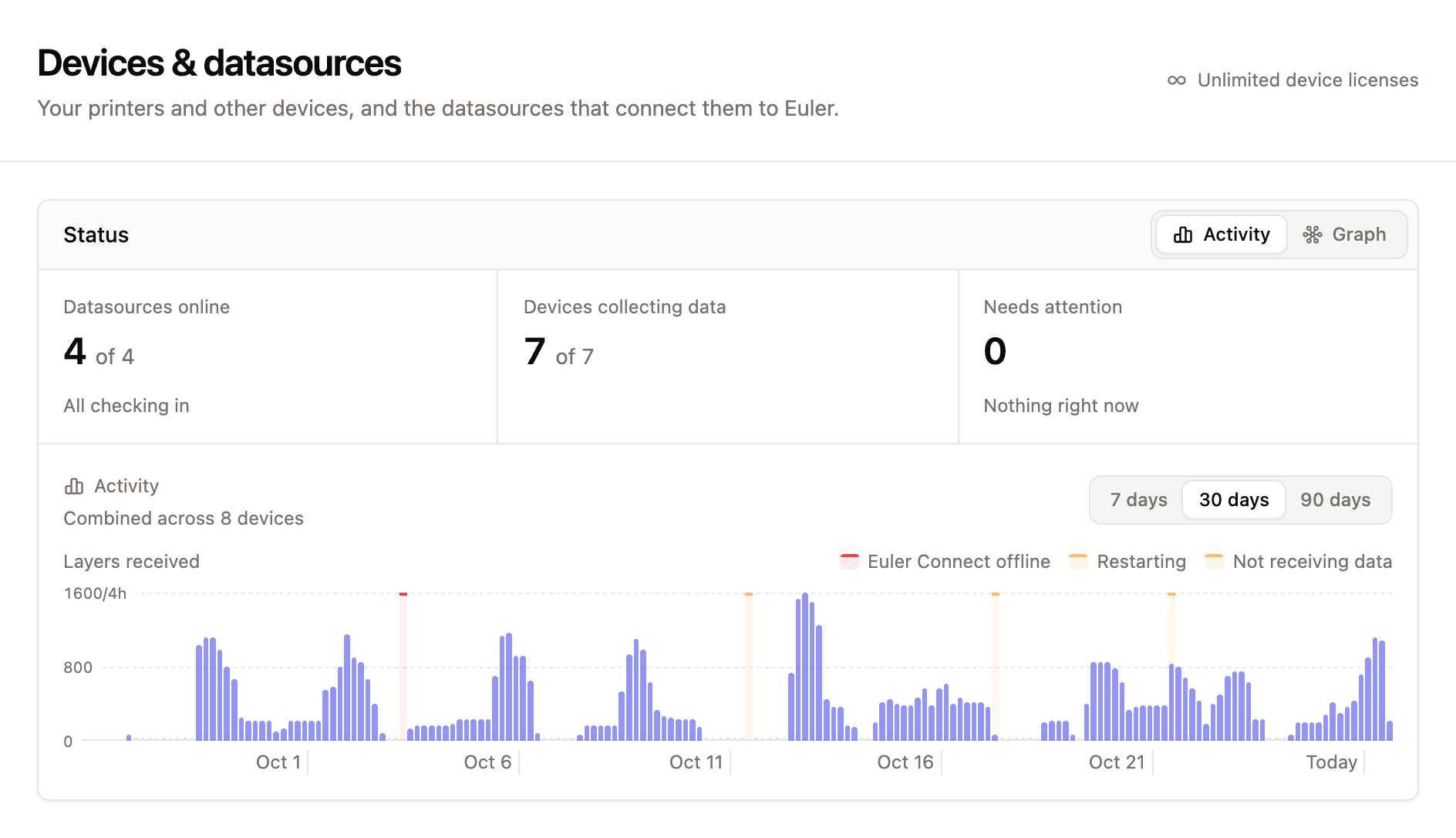
At the top of SettingsDevices & Datasources, the Status card sums up all your datasources:
- Datasources online: how many Euler Connect installations are checking in, and which ones are not.
- Devices collecting data: how many connected devices are sending layers.
- Needs attention: connections with a problem right now.
Switch the card between Activity, a chart of the layers received over time, and Graph, a diagram of your datasources and their devices, at its top right.
The datasources table
Each row shows one Euler Connect installation:
- Datasource: the computer's name, the Euler Connect version and the computer's local IP address. A datasource that has never checked in shows Not yet connected.
- Last seen: when Euler last heard from it. Right now means it is running and connected. Hover to see the exact time.
Click Edit to open a datasource. The menu next to it has Download, which downloads the license file (Euler asks for your password first), and Delete. Deleting a datasource disconnects every device that uses it.
To add one, click New datasource. See Installing Euler Connect.
A datasource's page
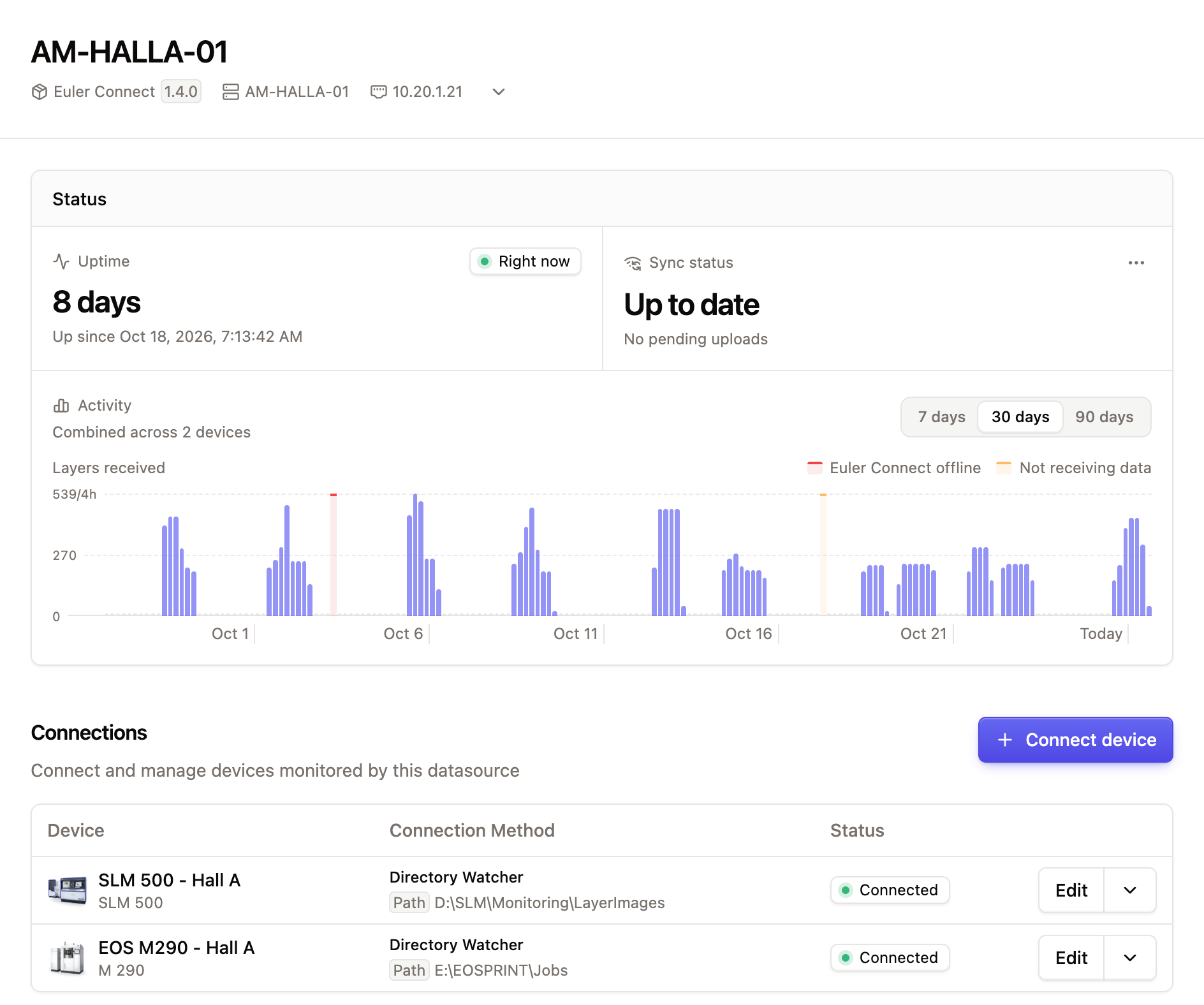
The header shows the computer's name, its local IP address and the Euler Connect version. The Status card has two tiles, Uptime and Sync status, and a chart of the layers received over the last 7, 30 or 90 days, with how many devices were collecting data at each point.
Uptime
How long Euler Connect has been running, with its status. If Euler has not heard from it for five minutes, this shows Offline and Heartbeat not received in the last 5 minutes. See Troubleshooting.
The menu next to the computer's name at the top has Restart runtime, which restarts Euler Connect on the workstation from Euler.
Sync status
How many files Euler Connect still has to send. Up to date with No pending uploads means everything has arrived. Otherwise you see the number of pending files and Oldest since with the time of the oldest one. A growing number usually means a slow or broken network connection.
If an upload keeps failing, the menu on this tile shows the error. Clear queue throws away the files still waiting to be sent. Use it only when Euler support asks you to.
Connections
The devices this Euler Connect watches. For each one you see the device, the Connection Method with its main setting (such as the folder it watches), and the Status:
- Connected: working and collecting layers.
- Connecting or Waiting for report: starting up.
- Restarting: the connection hit a problem and is restarting by itself.
- Not receiving data: Euler Connect is running but cannot read the device's images, for example because a network drive dropped. It resumes by itself.
- Error: the connection stopped. Update its settings or restart it.
- Offline: Euler Connect itself is not checking in.
- Device disabled: the device is turned off in Euler.
Click Connect device to add a device. Click Edit on a row to change its settings. The menu next to Edit has View device, Restart and Disconnect. Disconnecting while a print is running loses data from that print.
Graph and Logs
Below the connections, the Graph tab shows the datasource and its devices as a diagram.
The Logs tab shows Euler Connect's log as it runs, which helps Euler support with problems. Log forwarding is on for every organization on Euler's cloud. It isn't available on installations your company runs itself, where the tab shows Log forwarding is disabled. Export a diagnostics package from the computer running Euler Connect instead.