Setting up Euler Connect
Connect Euler Connect to your organization and tell it which device to watch.
The setup window opens the first time Euler Connect starts. It connects this copy of Euler Connect to your organization. You can open it again at any time from the tray menu: SettingsSetup.
Only organization admins can connect Euler Connect to an organization. You sign in with your Euler account during setup.
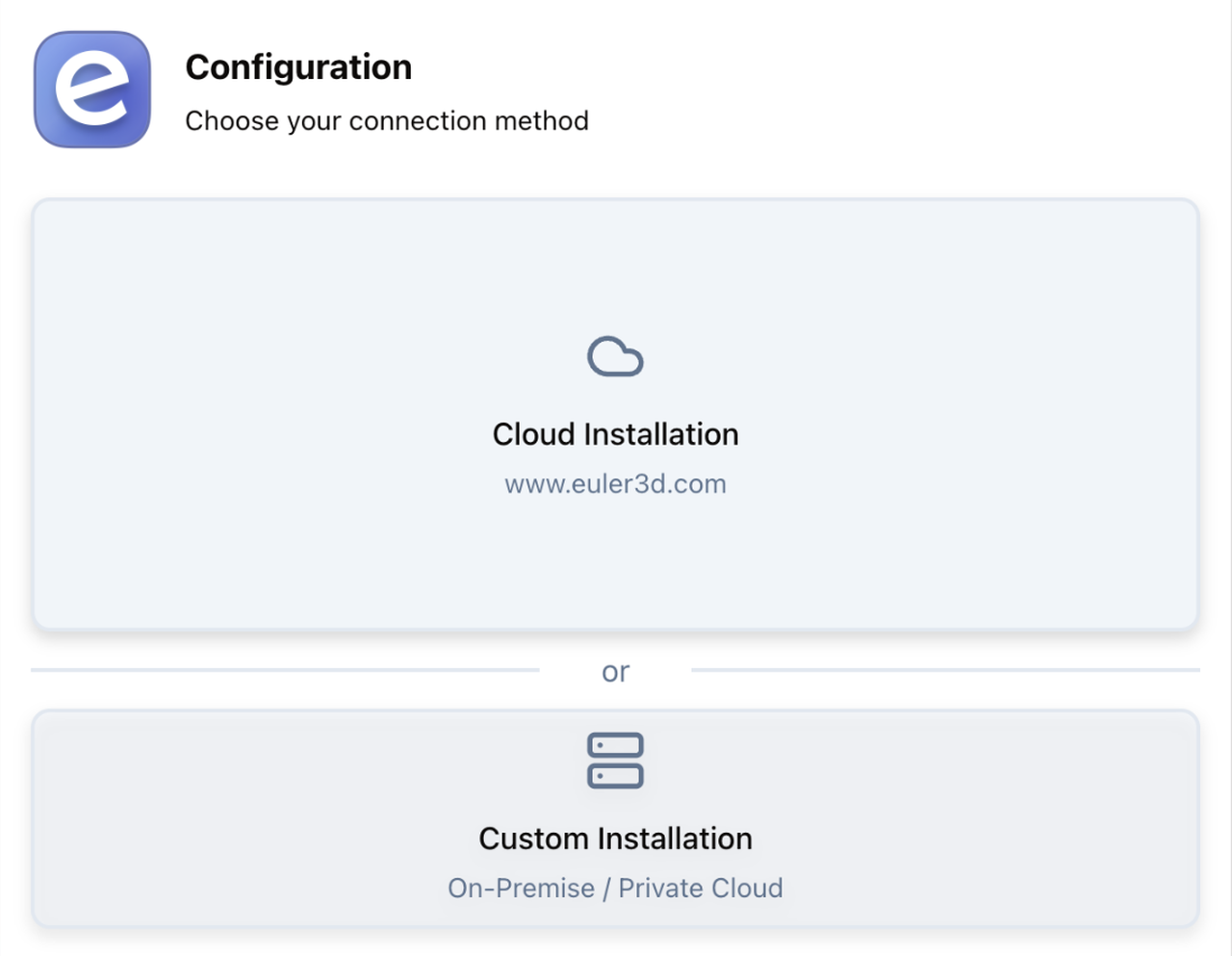
Connect to your organization
Choose your connection method
- Cloud Installation: choose this if you use Euler at www.euler3d.com.
- Custom Installation: choose this if your organization runs its own Euler installation (on-premise or private cloud).
Euler Connect then checks that it can reach Euler. If it can, it goes straight on to sign-in.
If the connection fails, add a proxy
If this computer can't reach Euler directly, Euler Connect shows Connection Failed with the connection settings:
- Hostname: where Euler is reachable from this computer. For Cloud Installation this is filled
in for you. For your own installation, enter its address, for example
http://euler.local. - Proxy URL (optional): the proxy this computer uses to reach Euler. HTTP and SOCKS5 proxies work.
Check the network connection and the hostname, add the proxy if your network needs one, and click Continue. With a proxy, you sign in with a license file instead of your browser: see Signing in with a license file.
Sign in through your browser
Euler Connect opens Euler in your web browser and shows Authenticating in Browser. If the browser does not open, click Open browser, or copy the link and open it yourself.
Sign in to Euler if you are not signed in already.
Choose the organization
In the browser, Euler asks which organization to connect to:
- If you belong to one organization, click Authorize.
- If you belong to several, pick one from Select an organization, then click Authorize.
Euler Connect shows Success and Euler takes you on to the next step in your browser.
Connect a device
Euler Connect now appears under Datasources in SettingsDevices & Datasources, named after the computer. Tell it which device to watch:
- Open the datasource and click Connect device under Connections. You can also use the Connect a device step in the Set up live monitoring card on the Overview page.
- Pick the device.
- Choose the connection method for your printer and fill in its settings. For most printers this is Directory Watcher: enter the Root Directory, the folder where the printer writes its layer images.
- Click Connect Device.
The device's status turns to Connected once Euler Connect is watching it.
If the folder is on a network share rather than the printer's own computer, open More settings in the connection and turn on Use Polling-Based Watcher. Expect layers to arrive around 30 seconds later than with Euler Connect on the printer's computer. See Where to install it.
Signing in with a license file
When Euler Connect reaches Euler through a proxy, you sign in with a license file instead of your browser. Euler Connect can use the proxy, but it can't make your browser use it, so browser sign-in might not get through.
- In Euler, go to SettingsDevices & Datasources, click New datasource, then
Create using license file. Euler downloads a file named
euler.lic. You can also download a license for an existing datasource from its menu with Download; Euler asks for your password first. - Copy the file to the Euler Connect computer.
- In the setup window, enter the proxy under Proxy URL (optional) when Euler Connect shows Connection Failed, and click Continue.
- Click Select license file and choose
euler.lic. Euler Connect shows License file has been imported successfully.
License files are sensitive. Do not share them outside your organization, and use each license on one computer only.
Next steps
- Set up perspective correction for the device if you have not yet.
- Check the connection on the Datasources page.