Comments
Leave notes on a print, pinned to a layer and a spot on the image if you like.
Comments let you and your team record observations, decisions and follow-ups on a print. Leave a general comment on the print, or pin one to an exact spot on a layer image so others can see what you mean.
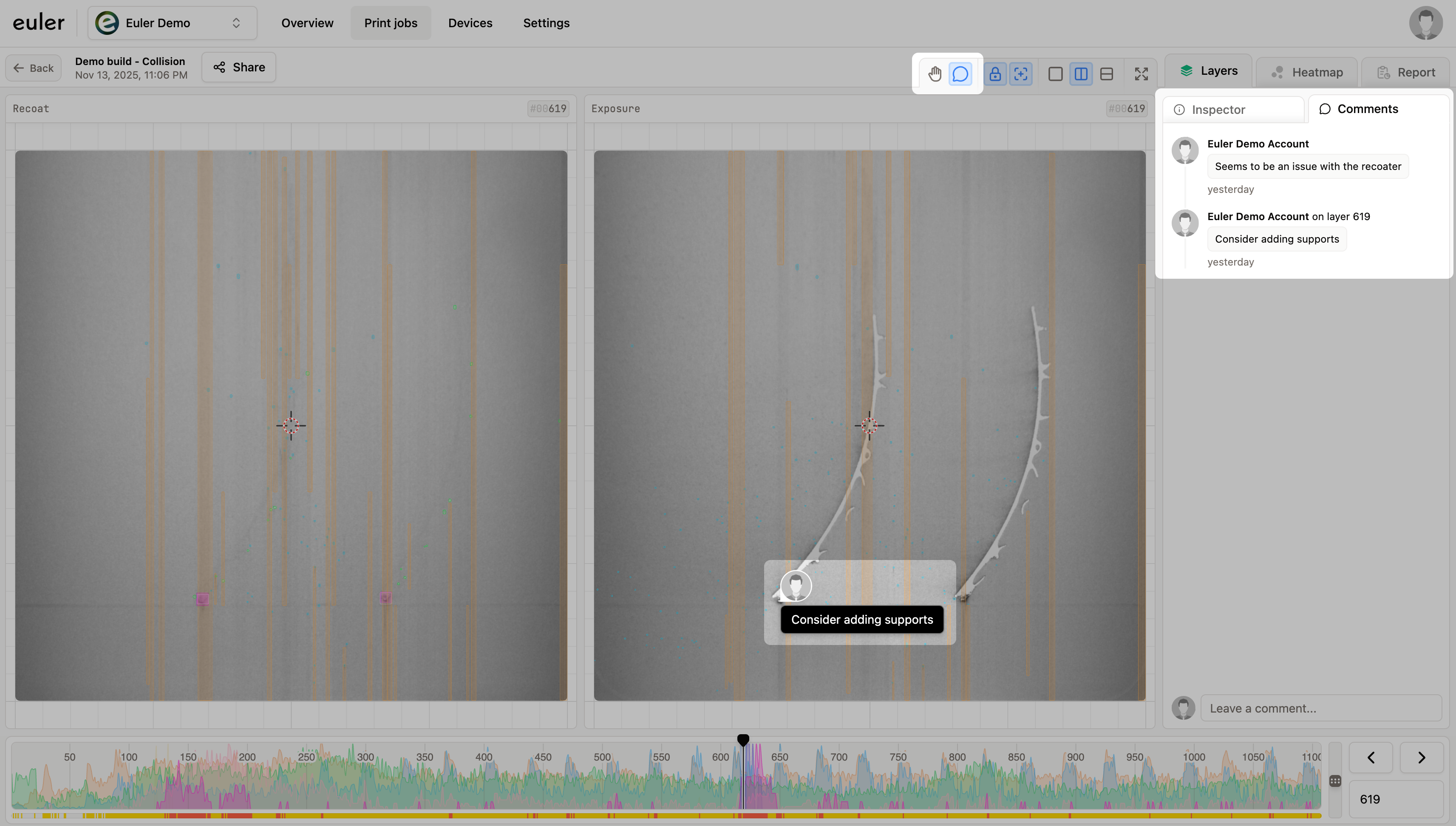
Open the Comments tab at the top of the print viewer sidebar to read and write comments. Click the Leave a comment... box, write your comment, and click Comment. To post from the keyboard, press Ctrl + Enter (⌘ + Enter on Mac).
Pinning a comment to a layer and spot
Select the comment tool
Click the comment button in the toolbar, or press C.
Click the spot
Go to the layer you want and click the spot on the recoat or exposure image.
Write and post
Write your comment and post it. A marker appears on the image at that spot.
Pinned comments say which layer they are on. Click on layer N in a comment to jump to that layer. To hide the markers on the images, turn off Comments in the Annotations list.
Formatting and images
Use the buttons above the comment box, next to Write and Preview, for bold, italic, links, code, bulleted, numbered and check lists. Ctrl + B and Ctrl + I (⌘ on Mac) work too. To add a picture, click the image button, or paste an image straight into the box.
Editing and deleting
You can edit or delete your own comments from the menu (⋮) that appears when you hover over them. You can't change other people's comments.
People viewing a print through a shared link don't see comments.
Alerts in the timeline
Comments share the print's timeline with critical alerts and the responses to them. See Alerts for what each alert event means.