Uploading a print job
Upload a finished build folder to Euler and check it before it is sent.
Uploading brings a finished build into Euler. You pick the build folder, check the layers in a preview, and Euler uploads them. You need a device first. For builds that should appear in Euler while they print, use Euler Connect instead.
Uploading works in Google Chrome and Microsoft Edge. Other browsers cannot open build folders.
What happens after the upload, and how much you can analyze, depends on your organization's plan. See Plans.
How to upload
Start the upload
Use either of these:
- On the print jobs page, click Upload print job and pick the device from the list.
- On a device's page, click Upload print job.

Choose the build folder
Drag the build folder onto Drag build folder here, or click Open build folder and choose it. Choose the main folder of the build, the one the printer created for this print. Below the drop area, What a print job directory looks like shows the folder layout Euler expects for this device type.
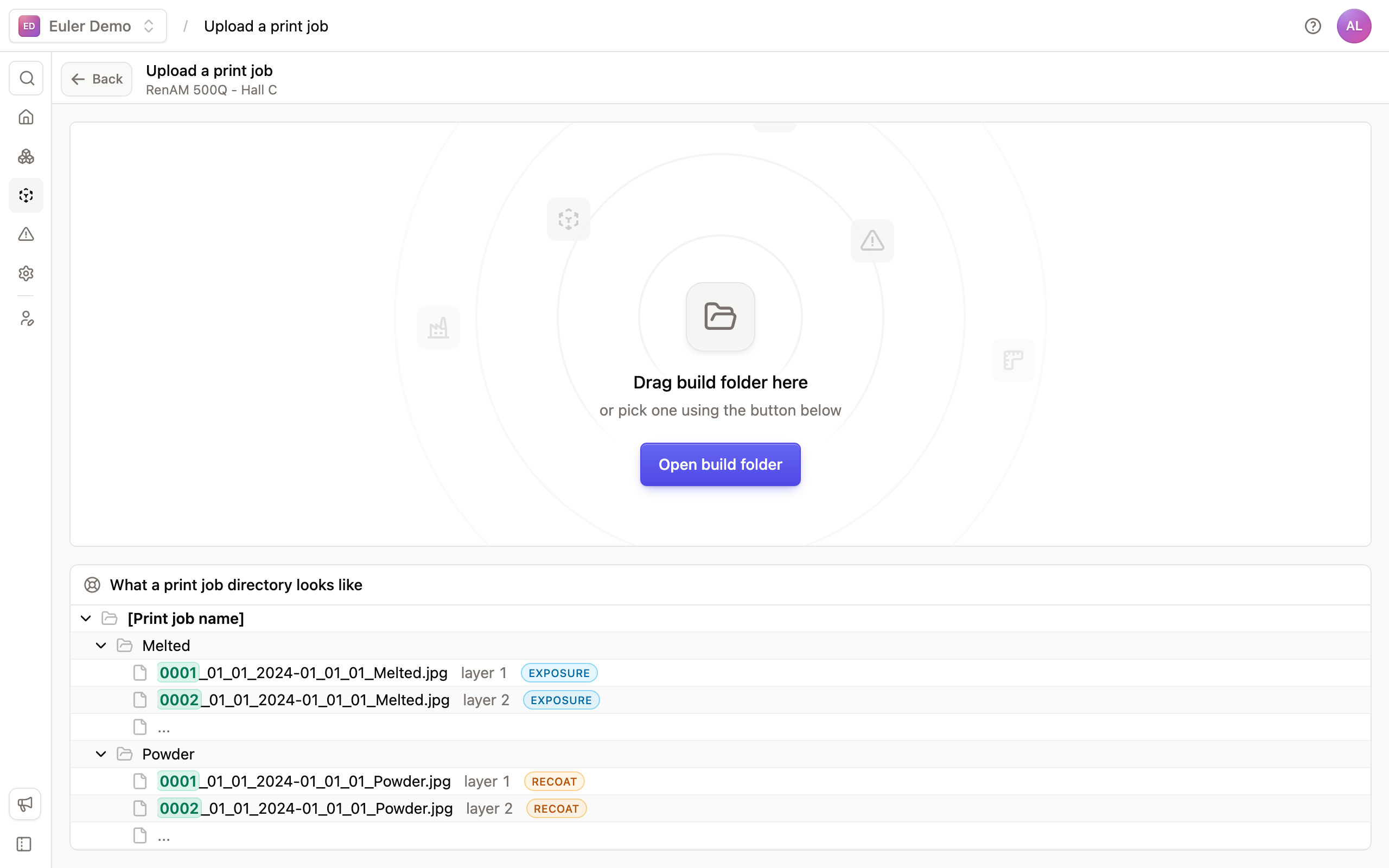
Euler reads the folder in your browser. Nothing is sent until you start the upload.
Check the layers
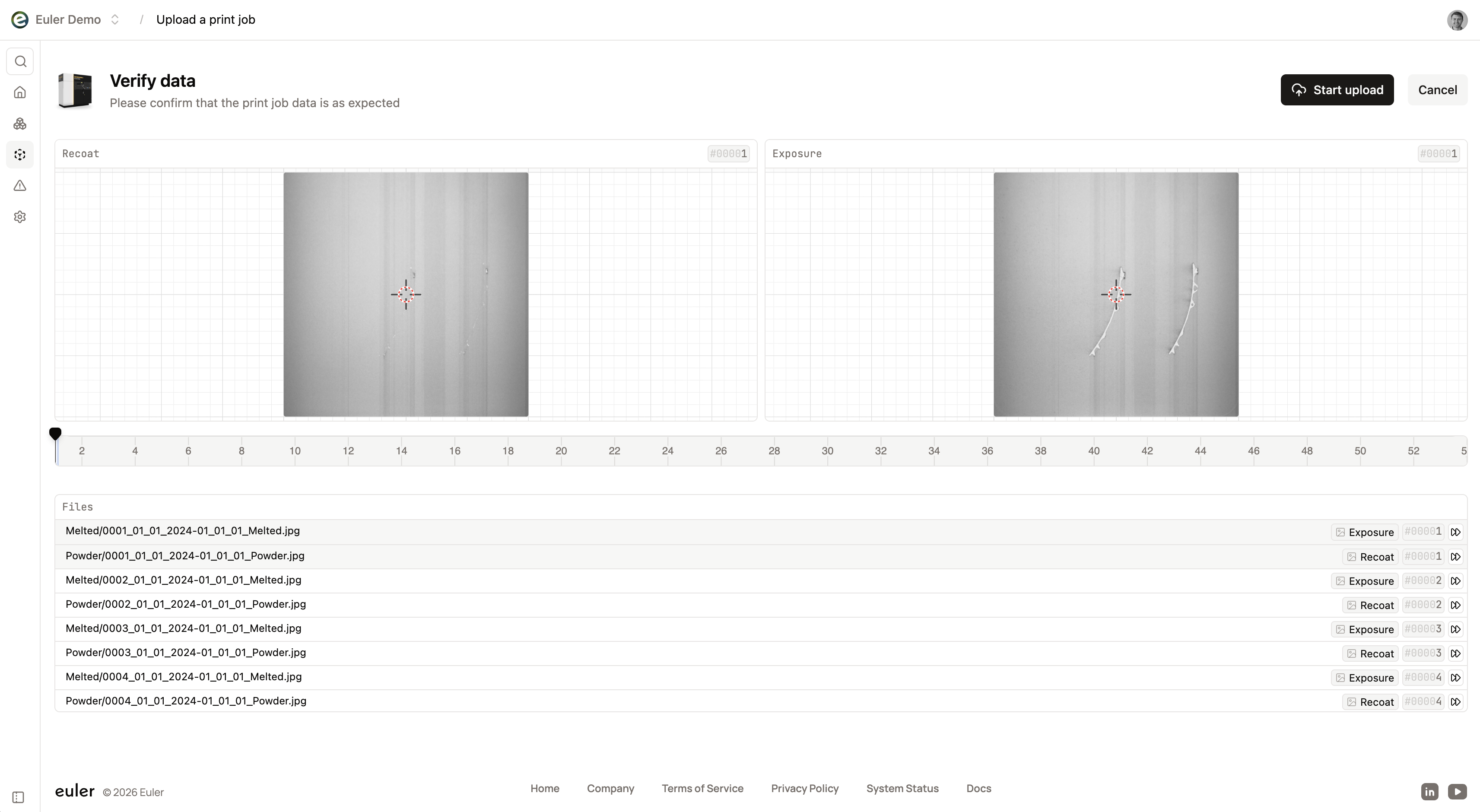
Euler shows the build in a preview, with the Recoat and Exposure image for each layer. Step through the layers and check that the images look right. The sidebar shows the build name, the device and the number of layers.
If some layers are missing an image, the sidebar shows how many layers are incomplete and which image is missing (Both images, Exposure or Recoat). The Missing layers bar under the preview marks where they are. Use Previous gap and Next gap to jump between them.
Set up perspective correction, if asked
If the device needs perspective correction and does not have it yet, the sidebar shows Perspective correction missing. Pick a layer where all four edges of the build plate are clear and click Set up using current layer. See Perspective correction. Only organization admins can do this; members see a note to ask an admin.
If the device already has a correction, the sidebar says so, and admins can click Adjust.
Upload
Click Upload print job. If layers are missing images, Euler asks Some layers are missing; click Start upload to go ahead anyway.
Euler shows Uploading print job with the number of files sent. Keep the page open until the upload completes; closing it stops the upload.
- Click Pause to pause the upload, and Resume to continue. A paused upload keeps its progress.
- If the connection drops, you see The upload was interrupted. Click Retry upload.
Finish
When all files are sent, Euler shows Starting processing. Keep the page open a moment longer. Then you see Upload complete and Euler opens the new print in the print viewer.
If the print has not been analyzed yet, the print sidebar shows AI Analysis with an Analyze button that uses a credit. See Plans for how credits work.
If Euler does not recognize the folder
If none of the files match what Euler expects for this device type, you see We could not recognize this folder as a … print job. Euler shows your folder next to the expected layout, with the differences in the names marked.
- This is a subfolder. means you picked a folder inside the build. Pick the main build folder.
- Check that the device has the right Device type in Device settings.
- Click Choose another directory to try again.
If the device type is right and your printer stores its files differently, request support for it.
Supported devices
The device type decides how Euler reads the build folder. See Supported devices for the manufacturers Euler supports and how to ask for a new one.