Creating an organization
Set up your company's workspace in Euler.
An organization is your company or team in Euler. Your devices, prints and members all belong to it. You need one before you can upload prints or invite your team.
After you sign up and confirm your email address, Euler takes you to Create an organization. If you already belong to an organization, open the organization switcher at the top of the sidebar and choose New organization.
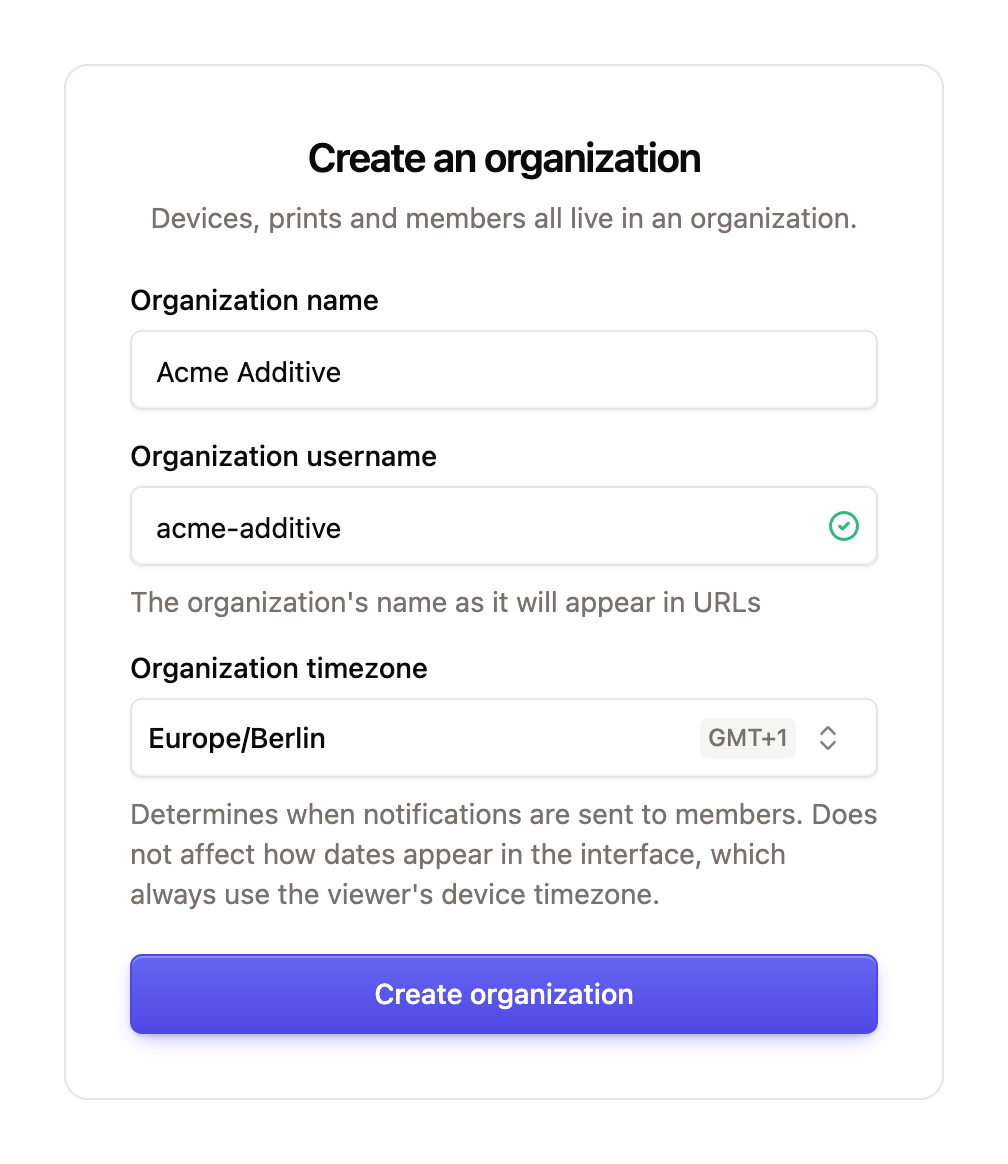
Fill in the form:
- Organization name: how your organization appears in Euler and in reports. Example: Acme Corp.
- Organization username: the short name used in your organization's web address. It can contain
letters, numbers, dashes and underscores. Example:
acmegiveseuler3d.com/app/acme. A tick shows that the name is available. - Organization timezone: decides when time-based notifications are sent to members, such as the offline devices digest. It does not change how dates appear in Euler. Those always use the time zone of the computer you are viewing them on.
Click Create organization. Euler opens the new organization's Overview page, where you can add a device and upload your first print.
You become an Admin of the organization you create. Admins can change settings and manage members. See Members and roles.
You can belong to several organizations. Switch between them with the organization switcher. You can change the name, username and timezone later in SettingsOrganization.
If you can't create an organization
On some installations, people can't create organizations themselves. You won't see New organization in the switcher, and after you sign in you see the message "You have not been added to an organization yet. Contact your site administrator to get access." Ask your administrator to add you to an organization.