The organization overview
What the organization Overview page shows and how to use it.
The Overview page is the first page you see when you open an organization. It shows how busy your machines have been, which prints are running right now, and the latest critical alerts. Open it from Overview at the top of the sidebar.
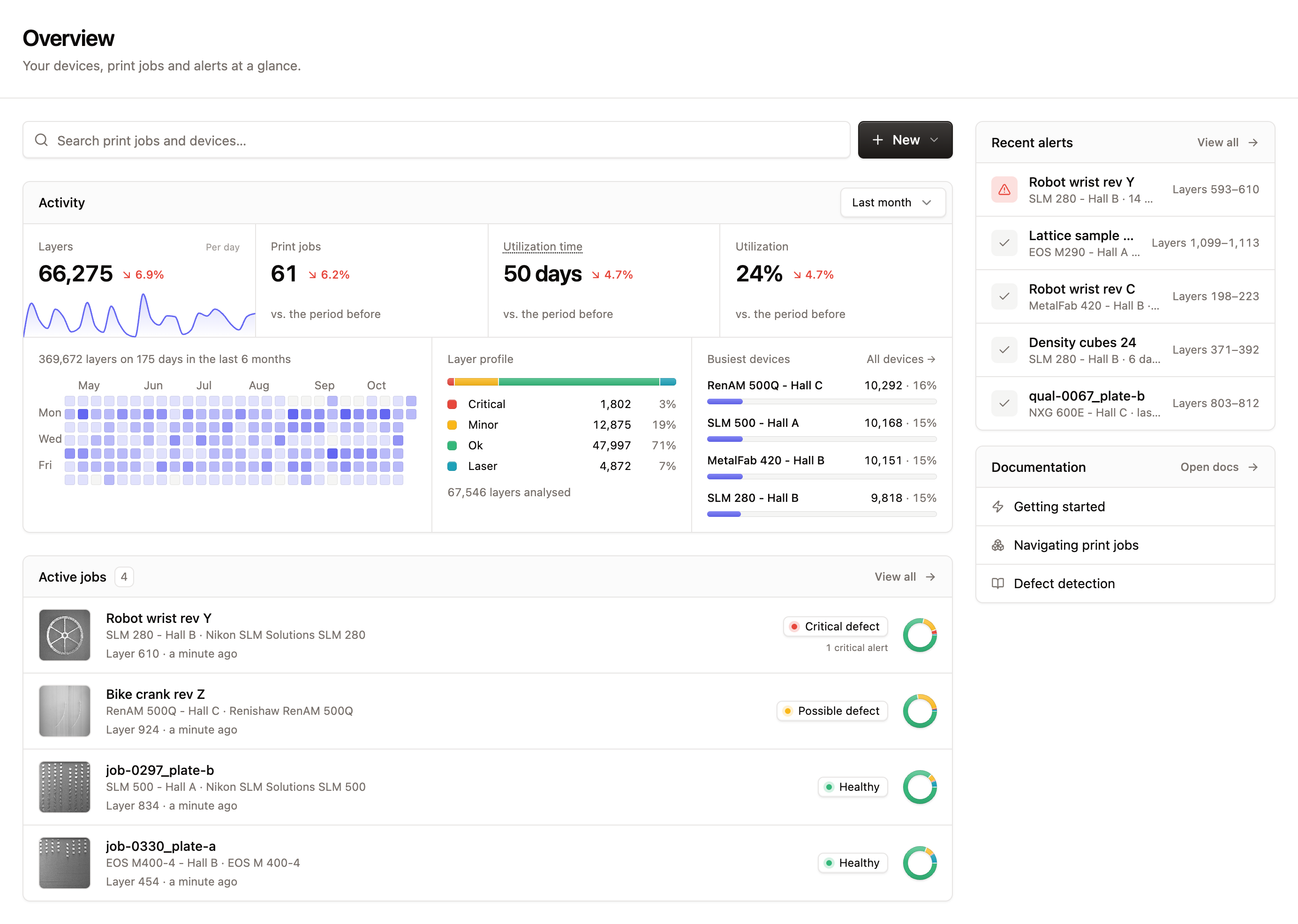
The page has a main column with search, Activity and Active jobs. Next to it, a narrower column holds Set up live monitoring, Recent alerts, your plan's usage and links to the documentation.
Search
Use the Search print jobs and devices… bar at the top to jump straight to a print or a device by name.
Getting started steps
A new organization shows a Get started card in place of the Activity card. It walks an admin through three steps: Register a device, Upload a print job and View your print job. On the free plan the card also shows how many free analysis credits are waiting for your first print. The card goes away once the steps are done.
Activity
The Activity card sums up your organization's work. Choose Last month, Last 6 months or Last year in the top right corner. The tiles show, for that period and compared with the period before:
- Layers and Print jobs.
- Utilization time and Utilization. These only count prints sent by Euler Connect.
Below the tiles you see:
- A heatmap of layers recorded per day over the last 6 months.
- Layer profile: the share of layers that were OK, Minor defect, Critical defect or Laser in image.
- Busiest devices: the devices that recorded the most layers in the period. Click All devices to open the Devices list.
Devices
Active jobs lists the devices that are printing right now, with the ones that need attention first. Each row shows:
- The latest exposure image.
- The print's name, the device name and its type.
- The layer the print has reached and when that layer arrived.
- The device's state, for example Healthy, Critical defect or Offline. See Device monitoring for every state. If the print has critical alerts, the row says how many.
- A small ring with the print's layer results so far.
Click a row to open the print in the print viewer. When nothing is printing, the card says No prints in progress. Click the Active jobs title to open the full print jobs list.
Live monitoring card
Admins of an organization that does not stream from a printer yet see a Set up live monitoring card. It takes you through Install Euler Connect and Connect a device, then shows whether the connection works:
- Starting the connection: Euler Connect is opening the connection. This usually takes a few seconds.
- Waiting for Euler Connect: the connection is set up, but Euler Connect has not checked in. Check that it is running on its computer and can reach Euler.
- Connection needs attention: Euler Connect reported a problem. See Troubleshooting Euler Connect.
- You're all set: builds on this device are now uploaded layer by layer while they print.
You can dismiss the card with the close button if you don't want to set up live monitoring now.
Usage and plan cards
On the free plan, the Usage card shows your remaining Analysis credits and a button to Upgrade for unlimited analysis. A Get more from Euler card lists what paid plans add. See Plans and credits.
Recent alerts
Recent alerts lists the latest critical alerts with the print, the device, when the alert was raised and the layers it covers. Click a row to open the print at the first layer of the defect. Click the Recent alerts title to see all alerts. See Alerts.
Announcements
Euler sometimes shows a short announcement, such as news about a new feature, in a card in the sidebar. Close it with the × button once you have read it.