Print job table
Find, sort, filter and act on the prints in your organization.
The Print jobs page lists every print in your organization, newest first. Use it to find a print, see how it went at a glance, and act on several prints at once.
What each row shows
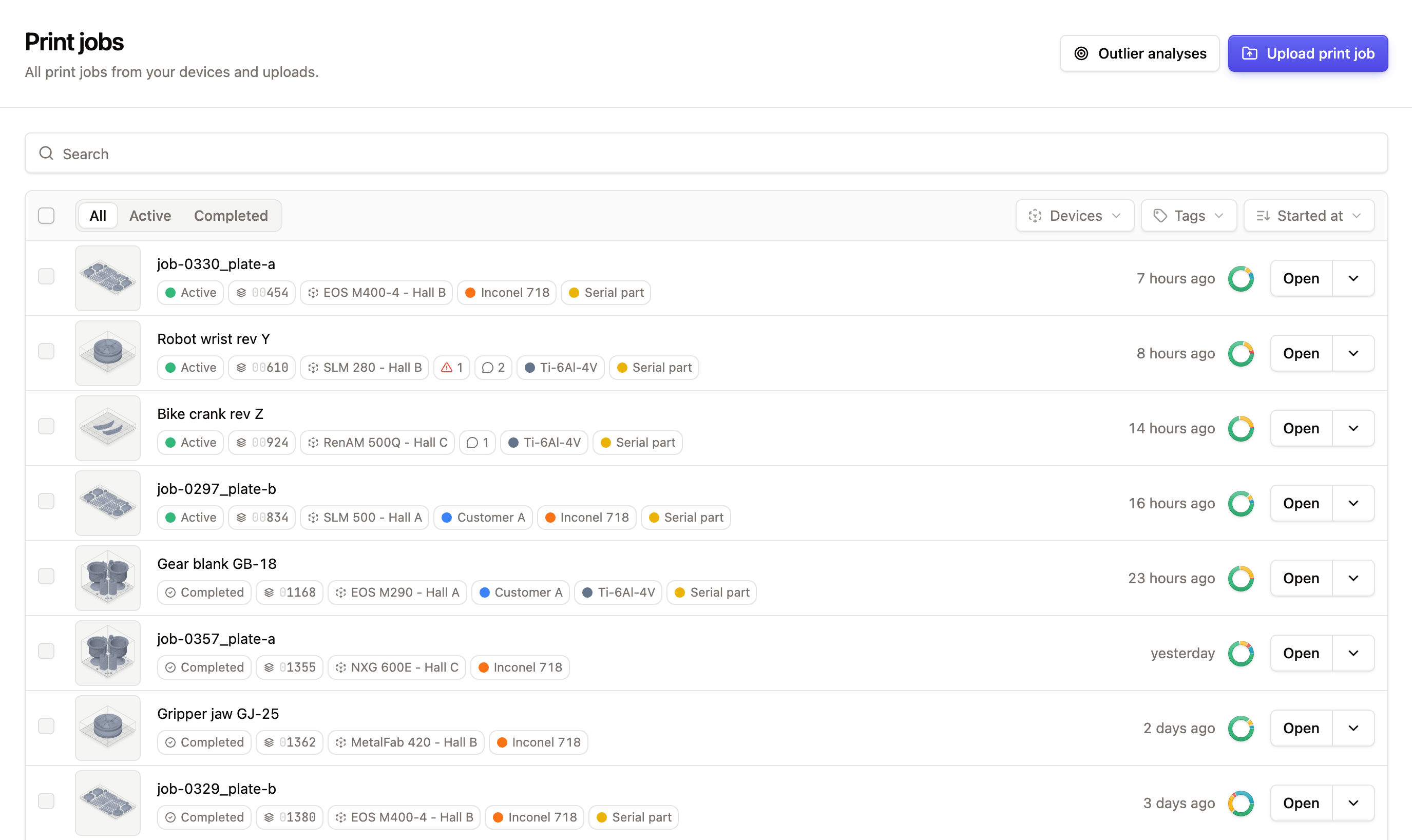
Each row starts with a small picture of the print. When the print has a 3D model, the picture is a 3D view of its parts; otherwise it is the latest exposure image. Next to it are the print's name and a row of chips:
- Status: Active while the print is running, Completed when it has finished, or Uploaded for a build you uploaded. While Euler is preparing or analyzing a print, the chip shows the step and a progress strip instead.
- The number of layers, the device, critical alerts, comments and tags.
- When the print started, and its layer profile.
The row you opened last is highlighted when you come back to the list.
Search and status
Type in the search bar to find prints by name. Use the status tabs to show All, Active or Completed prints.
Sorting
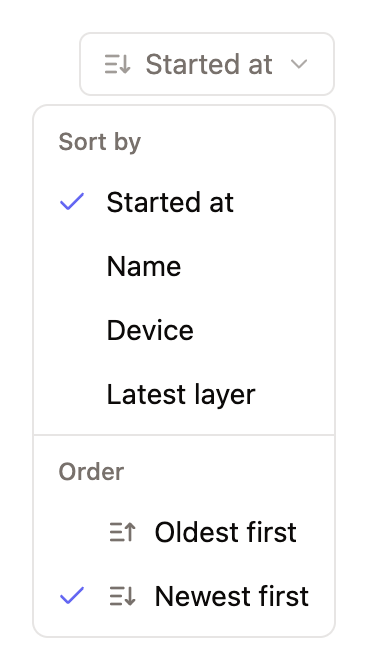
Click Started at to sort by a different field: Started at, Name, Device or Latest layer, in either direction.
Filtering
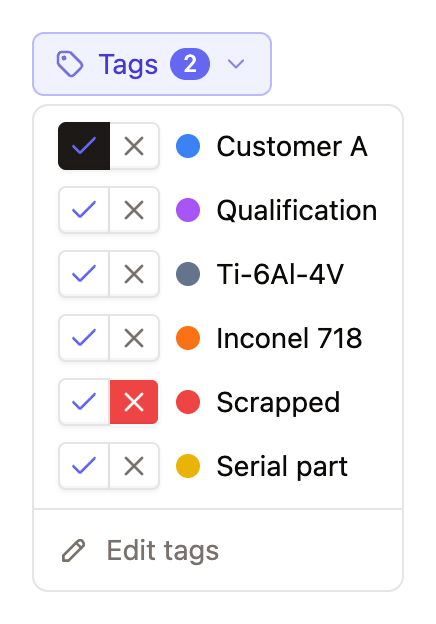
Narrow the list by Devices and Tags. For tags, you can include prints that have a tag or exclude prints that have it.
Search, filters, sorting and the current page are kept in the page address, so you can bookmark or share a view and come back to it later.
Paging
The list shows 50 prints per page. The bottom of the table shows which prints you are looking at, for example Showing 1–50 of 230. Use the arrows next to it to move between pages, or choose 25, 50, 75 or 100 prints per page.
Layer profile
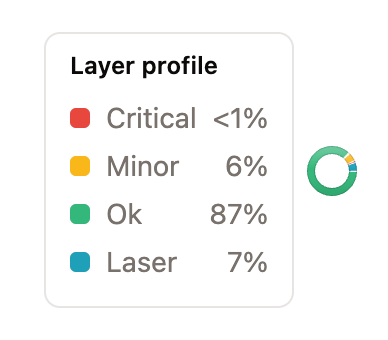
The ring next to each print's start time shows how its layers are split between severities. Hover over it to see the share of each:
- Green: OK
- Yellow: Minor defect
- Red: Critical defect
- Teal: Laser in image
Row menu
Click Open to open the print in the print viewer. The arrow next to it opens a menu:
- Open: opens the print.
- Stop watching: for a print Euler is receiving from a printer while it runs. Euler stops collecting the print and permanently deletes everything it has collected and analyzed for it. This cannot be undone. It is not available for completed or uploaded prints.
Batch actions
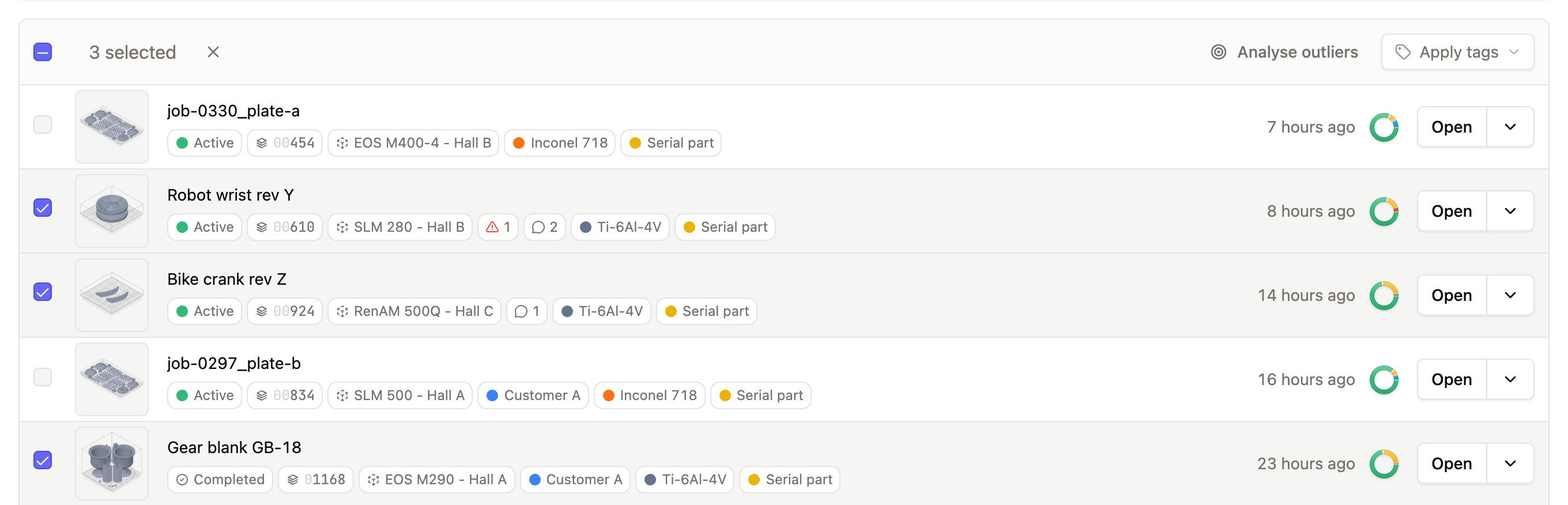
Tick the box on several rows to act on them together:
- Apply tags: add or remove tags on all selected prints, then click Apply.
- Analyse outliers: compare the selected prints to find the ones that stand out. See Comparing prints.