Setting up a new printer
From adding the printer in Euler to watching its first build live.
This guide takes a new printer from nothing to live monitoring. Each step links to the page with the details.
Only organization admins can do these steps. You also need access to the computer that runs the printer.
Create the device
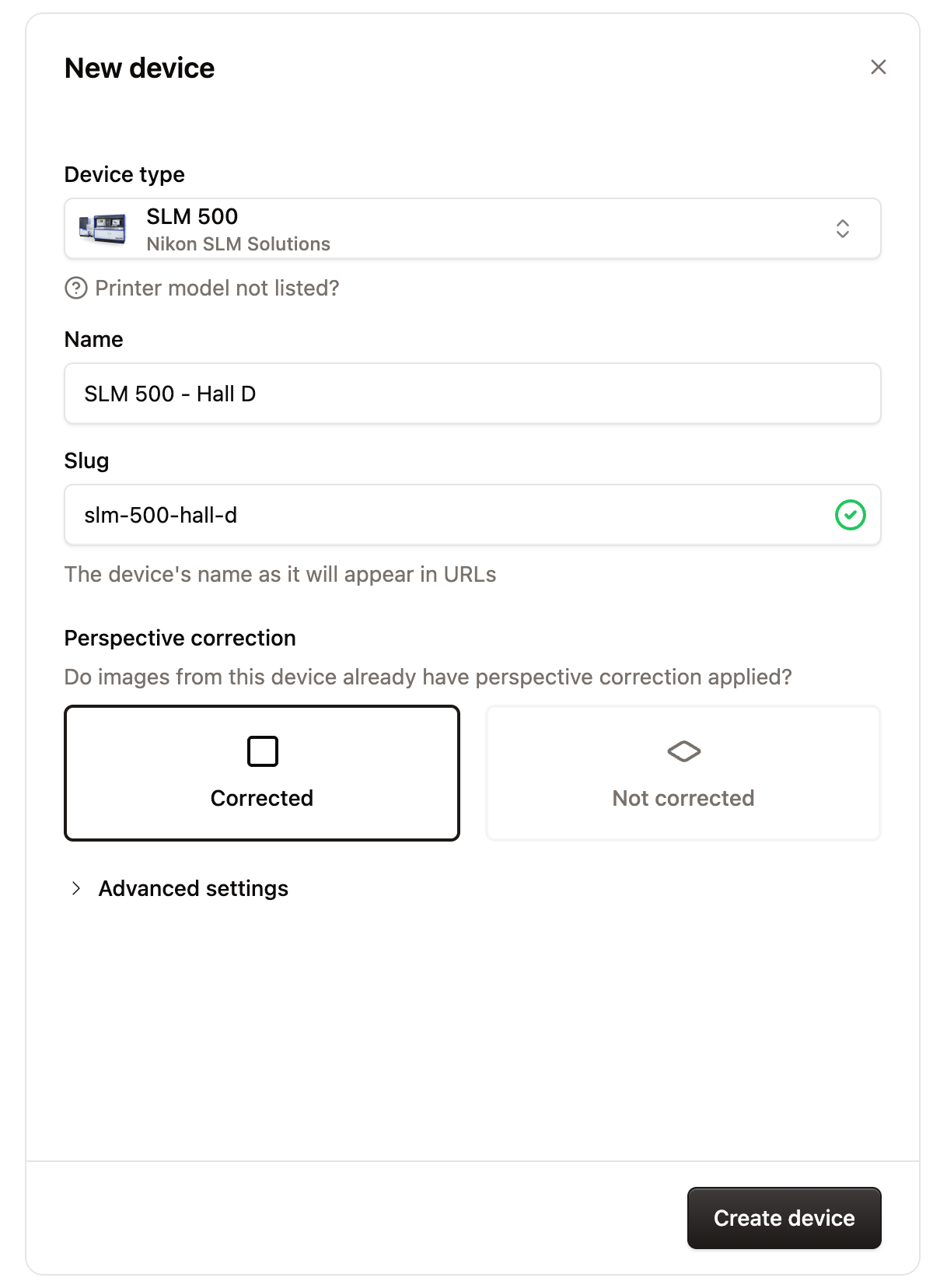
In SettingsDevices & Datasources, click New device, choose the Device type, and give it a name. See Creating a device.
Install Euler Connect on the printer's computer
Download Euler Connect from Euler and run the installer on the Windows computer that runs the printer. See Installing Euler Connect.
Set up Euler Connect
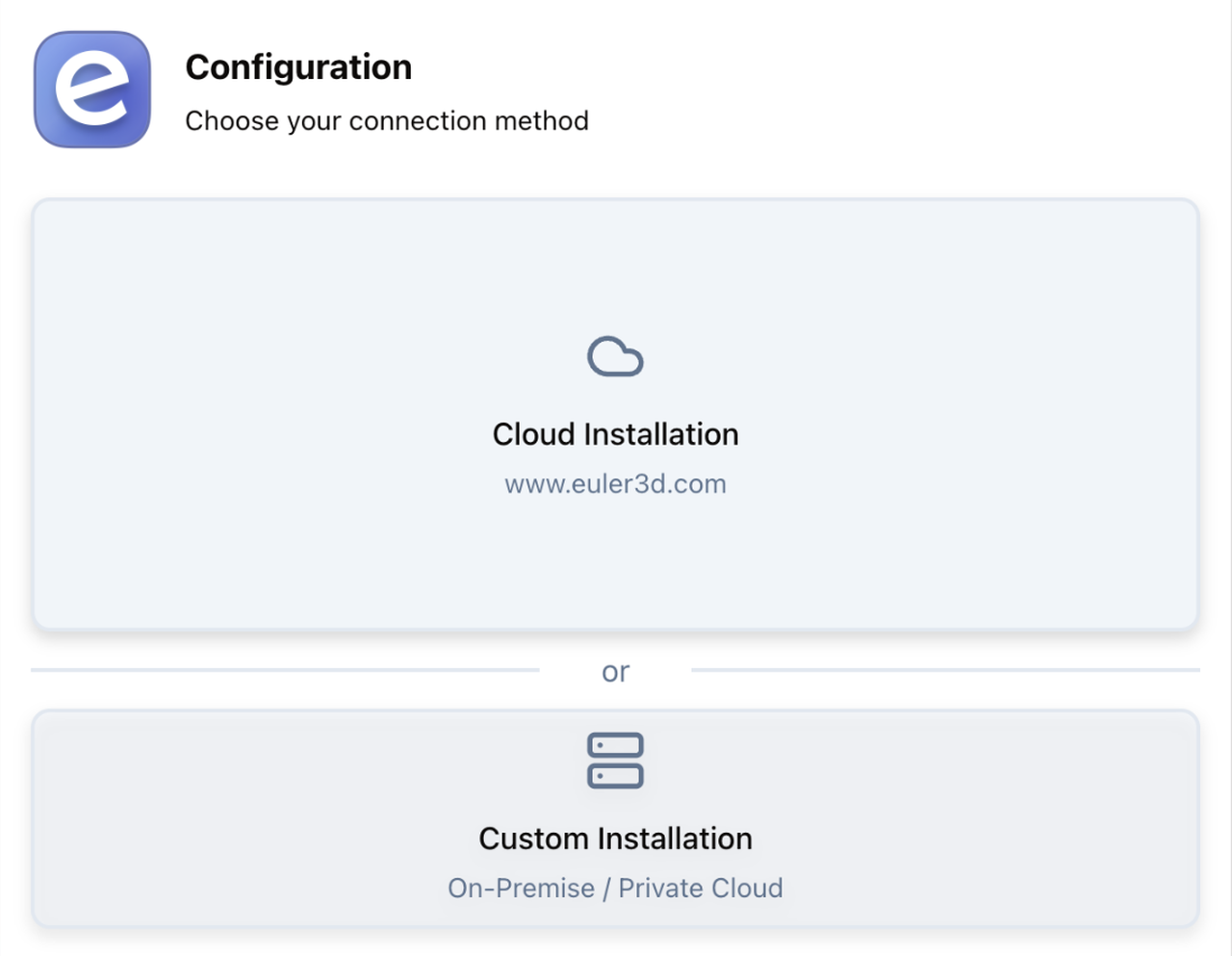
In the setup window, choose Cloud Installation (or Custom Installation if your company runs its own Euler), sign in through your browser and choose your organization. See Setting up Euler Connect.
Euler Connect now appears as a datasource in SettingsDevices & Datasources, named after the computer it runs on.
Connect the device to Euler Connect
Tell Euler Connect which printer to watch and where to find its layer images.
-
In SettingsDevices & Datasources, open the datasource for the printer's computer.
-
Under Connections, click Connect device.
-
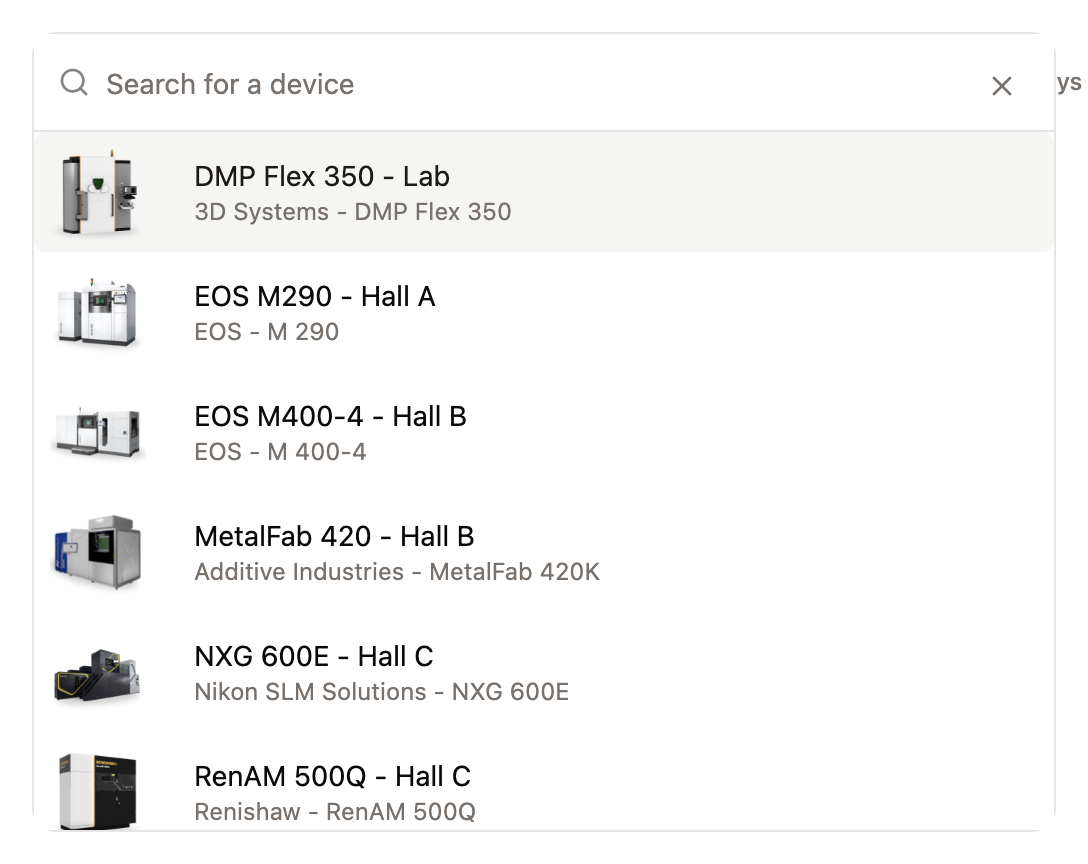
Pick the device you created in the first step.
-
Fill in the Connection Settings. What Euler asks for depends on the printer:
Connection method Used for What to enter Directory Watcher Most printers Root Directory: the folder the printer saves its layer images in, for example D:\SLM\Jobs.EOS Connect EOS printers with powder-bed imaging Hostname of the EOS machine. Use localhostif Euler Connect runs on the printer's computer.Renishaw (Non-InfiniAM) Renishaw printers without InfiniAM software Database Directory and Image Directory. The defaults match a standard Renishaw installation. If a printer supports more than one method, choose one first.
-
Click Connect Device.
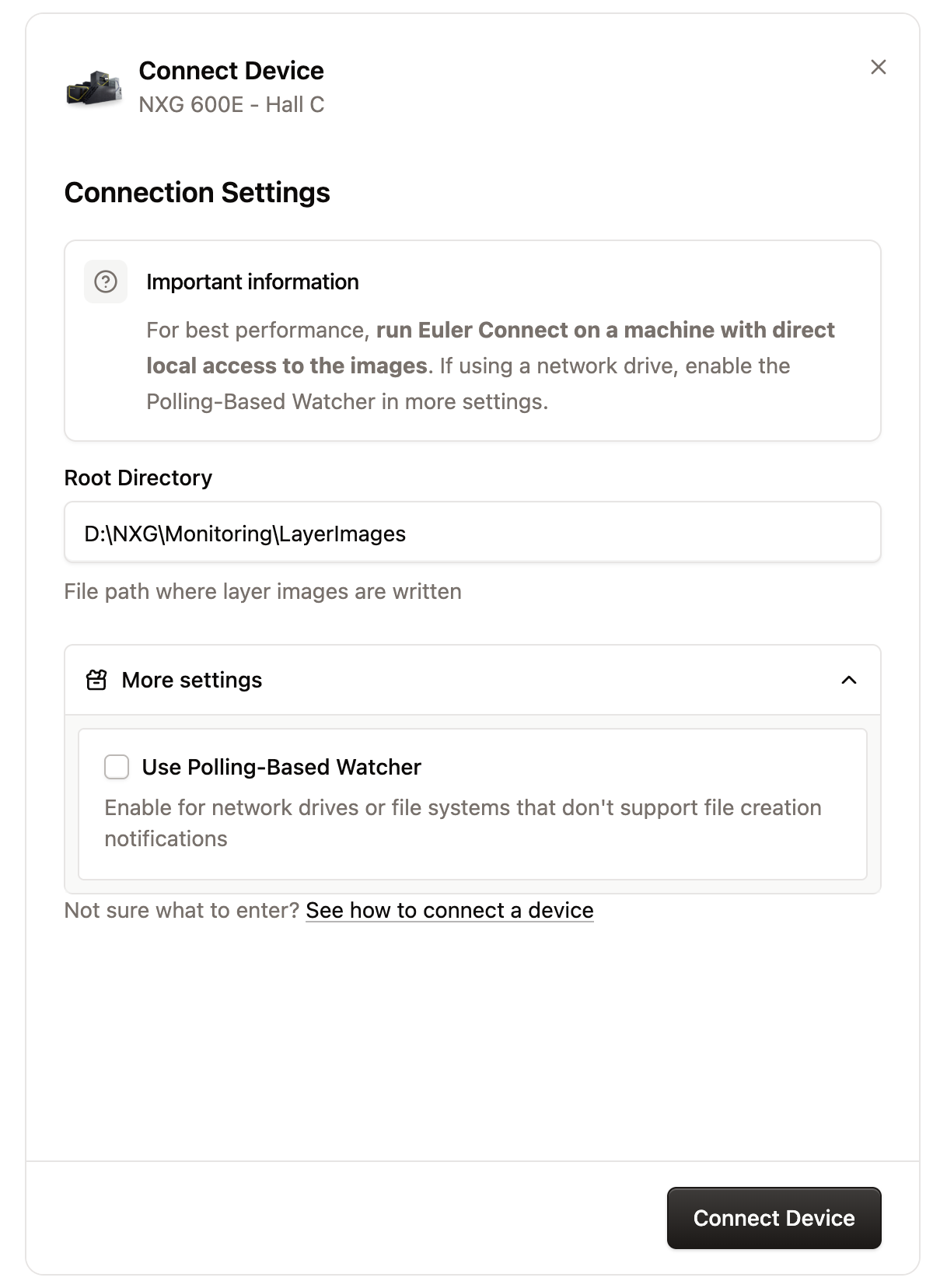
If the image folder is on a network share instead of the printer's computer, open More settings and turn on Use Polling-Based Watcher. Expect layers to arrive around 30 seconds later. See Where to install it.
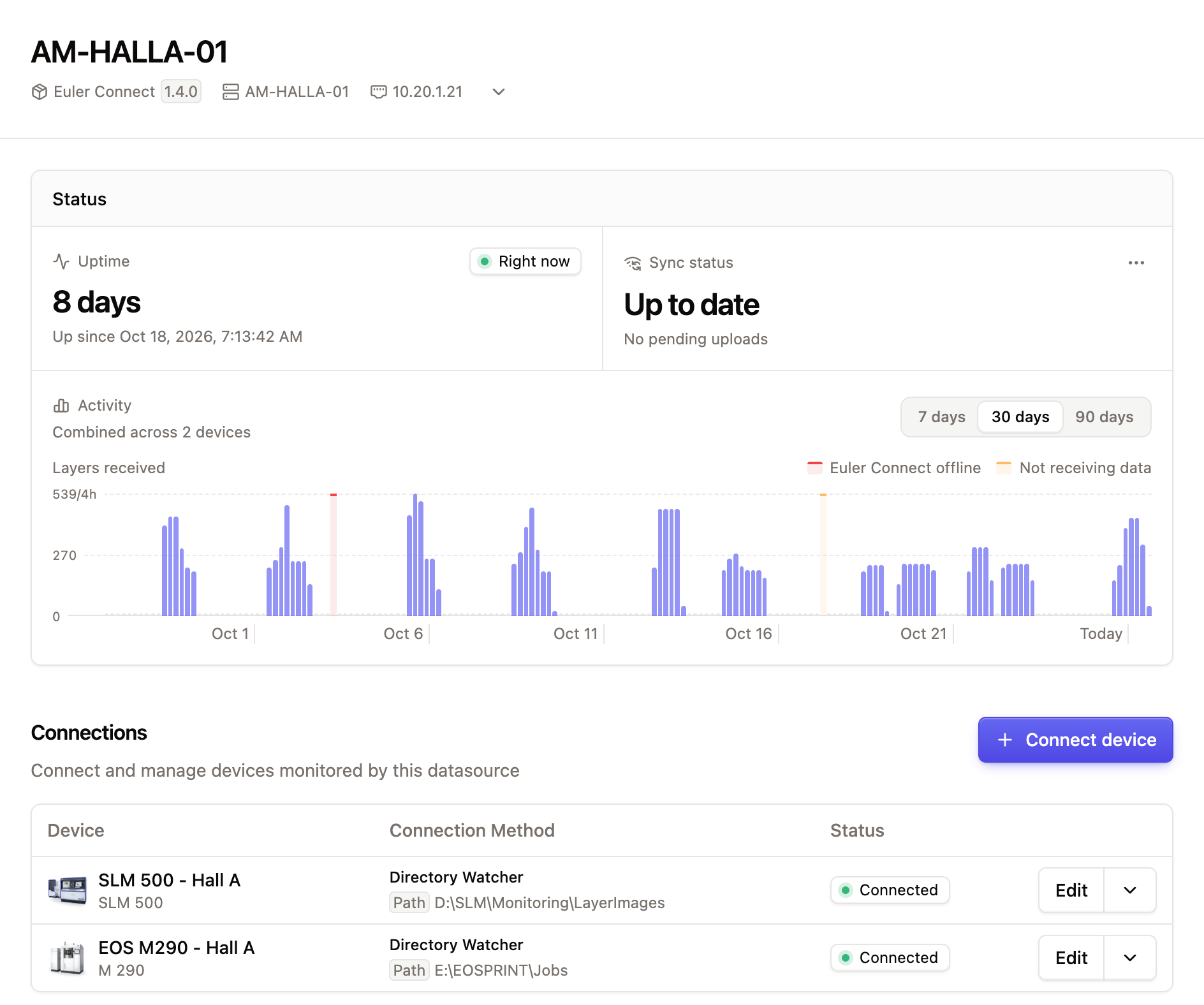
The device now appears in the Connections table. You can change the settings later with Edit on its row.
Set up perspective correction
If the printer's camera sees the plate at an angle, place the plate corners on a sample image so Euler shows defects in the right place. See Perspective correction.
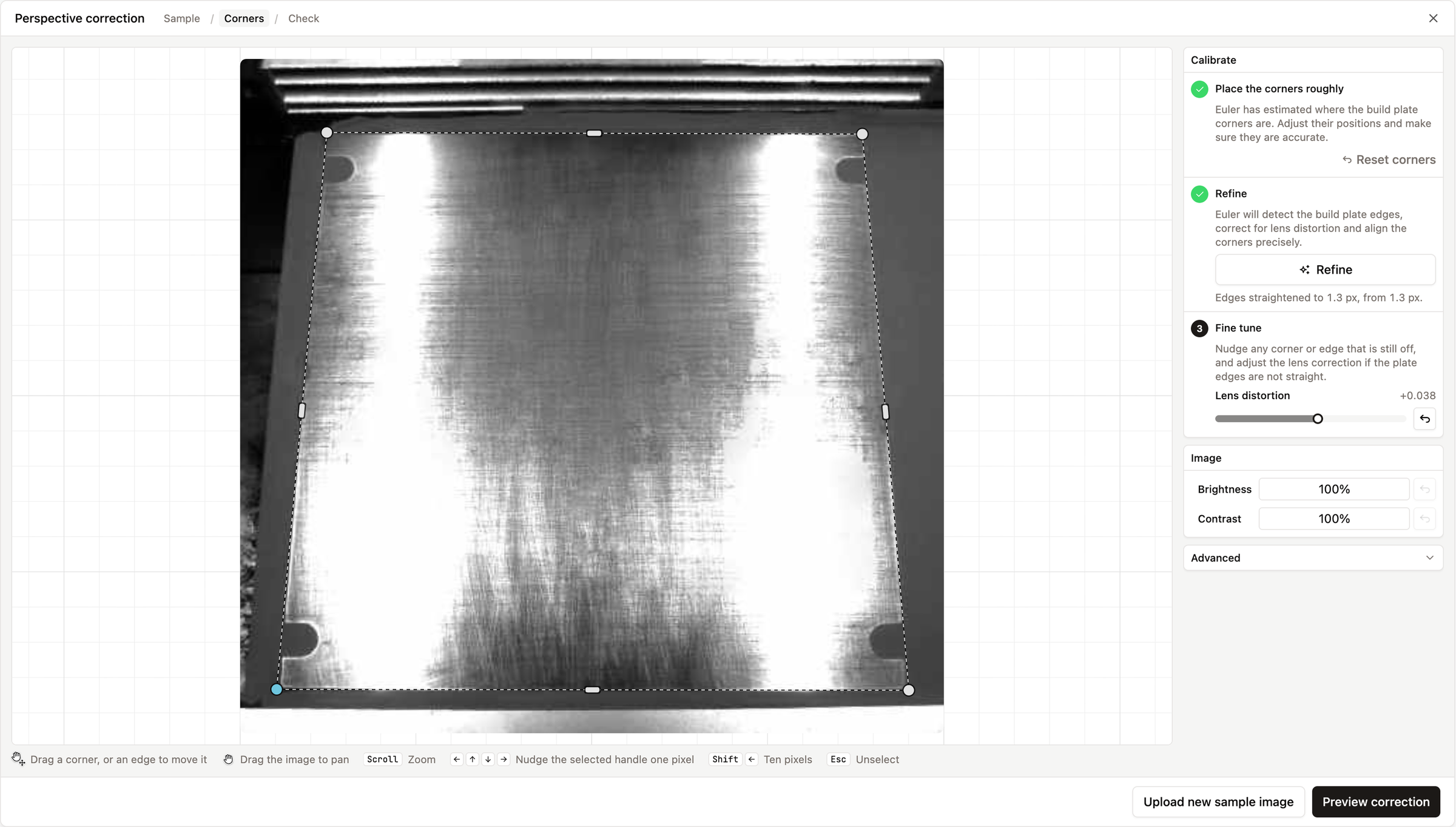
You can also do this during your first upload, using one of its layers.
Check that it shows as connected
In SettingsDevices & Datasources, the datasource's Last seen should say Right now. Open the datasource: the device's status under Connections should say Connected. See Datasources. If it does not, see Troubleshooting Euler Connect.
Run the first print
Start a build on the printer. The device shows the running print on the Overview page, and you can open it in the print viewer while it prints. See Device monitoring.
Next steps
- Choose who gets alerts in Notifications.
- Learn what to do when an alert comes in: You got a critical alert. What now?.