You got a critical alert. What now?
What to do when Euler tells you it found a critical defect in a running print.
A critical alert means Euler found a critical defect in a print that is still running. Here is how to check it and record what you decided, usually in a few minutes.
Open the print
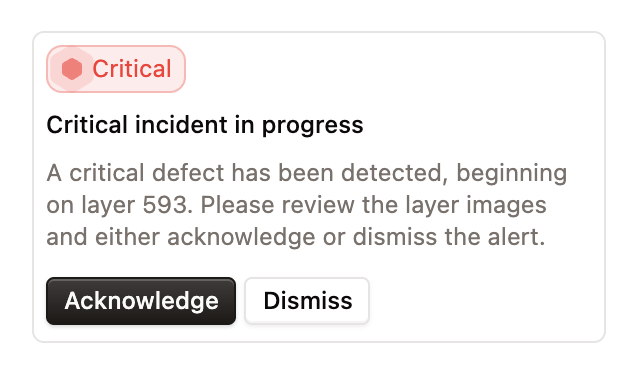
In the email (Critical defect in print job) or the Slack message, click the link or View job. The print opens at the layer where the defect was found, with Critical incident in progress at the top of the sidebar. If you have moved away, click that card to jump back to the layer where the defect began.
Review the layers
Look at the recoat and exposure images and step forward with → to see whether the defect grows, repeats or fades. The frequency plot and the layer status bar show whether it is a one-off or a run of critical layers.

Check the defect types if you're unsure what you're seeing.
Decide on the machine
Decide whether the print can go on, needs a change (for example to parameters or by skipping a part), or has to stop. Make that change on the machine itself.
Responding in Euler records what happened. It does not control the printer.
Respond in Euler
On the card, choose:
| Button | Option | When to use it |
|---|---|---|
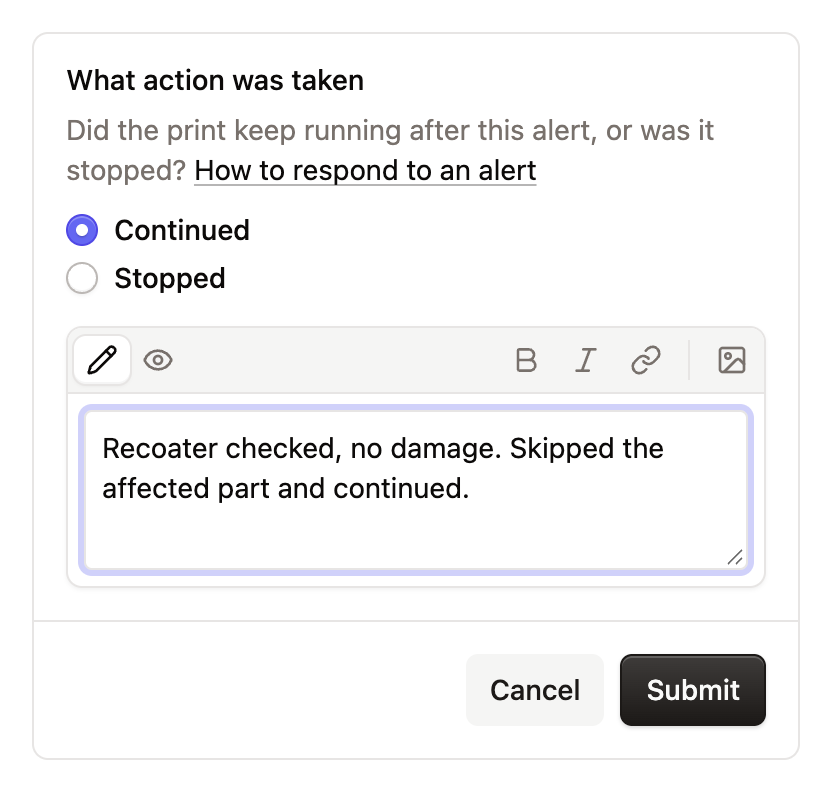
| Acknowledge | Continued | You dealt with it and the print runs on. |
| Acknowledge | Stopped | You stopped the print. |
| Dismiss | Mark as resolved | There was no real problem. |
| Dismiss | Snooze | Check again after 50, 100 or 200 more layers. |
Add a short note in Add details... so others know why, then click Submit.
Leave a comment if needed
For anything longer, such as what you saw or what to check after the build, leave a comment, pinned to the spot on the layer if that helps.
Your response and note appear in the print's timeline and in its report.