Preparing a build report for your customer or QA
Turn a finished print into a report you can print, save as PDF or share as a link.
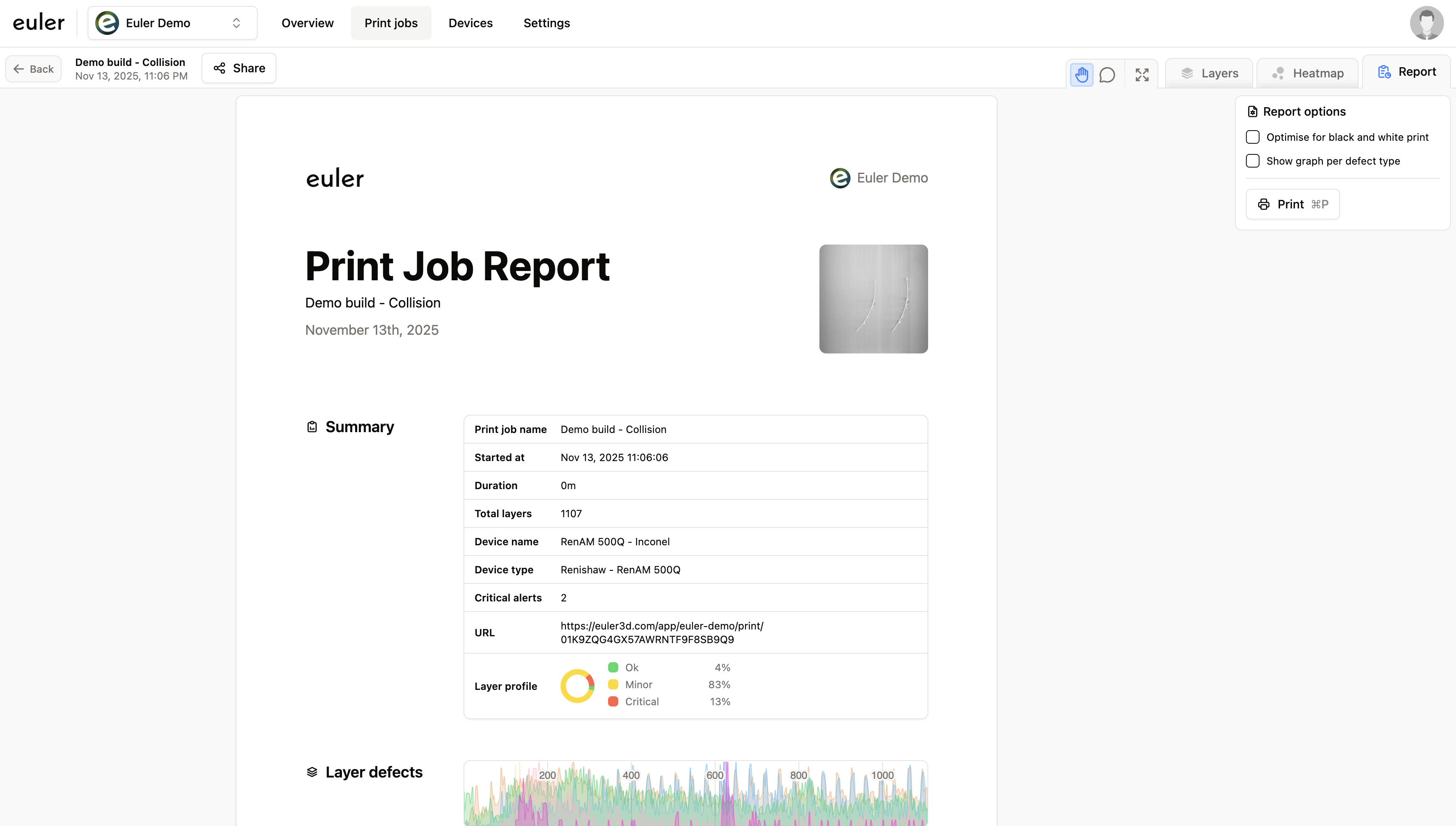
When a build has finished, the Report tab gathers its summary, layer defects, heatmaps, alerts and comments on one page. This guide walks through preparing it for a customer or your QA team.
The report is available for prints that Euler has analyzed.
Open the Report tab
Open the print and click Report. The tab appears once the print has finished. See Report for what each section shows.
Add your comments first
Anything the reader should know, such as a defect you checked and accepted or a change you made during the build, belongs in a comment. Attach it to the layer image it is about. Every comment on the print appears in the report's Comments section, and every alert and how it was answered appears in the Alerts section.
Set the report options
In the sidebar, under Data and Display:
- The layer range: drag the handles, or type the first and last layer, to limit the report to part of the build.
- Aggregate: how defects are counted per layer in the graphs.
- Only defects on part: leave out defects outside your parts.
- Critical layers only in heatmaps: show only the layers with critical defects in the heatmaps.
- Black-and-white printing: better contrast on a monochrome printer.
- One graph per defect type: one graph per defect type instead of one combined graph.
The summary always shows the Model ID the print was analyzed with, so your reader can tell which results they are looking at. Admins can set the defaults under SettingsReports.
Add an outlier analysis
To show how this build compares with others, such as earlier builds of the same part, add an outlier analysis on paid plans. In the report's Outlier analysis section, click Add outlier analysis and pick one of the print's analyses, or choose Compare with other builds… to start a new one. The report then shows the print's deviation, which defect types differ from the group, and a link to the full analysis.
The section is left out of the printed report until you add an analysis.
Print or save as PDF
Click Print in the sidebar, or press Ctrl + P (⌘ + P on a Mac). Choose your printer, or Save as PDF in your browser's print dialog.
Or share a link
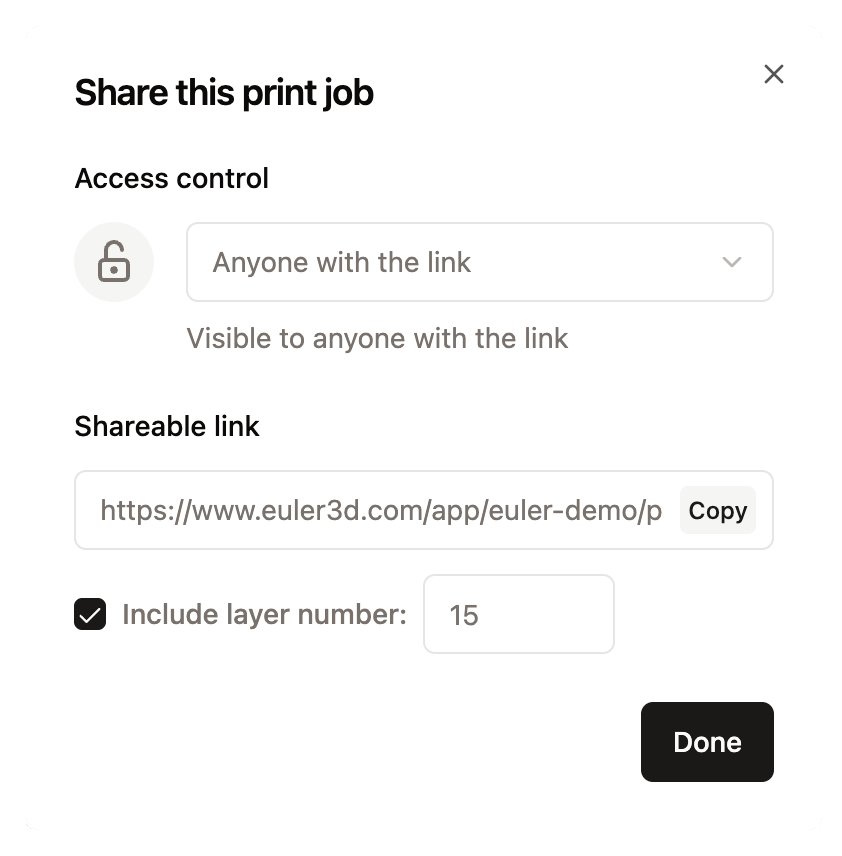
Click the share button next to the print name and choose Anyone with the link to let someone outside your organization open the print without signing in. Turn it back to Restricted when they are done. See Share jobs.