First-run setup
Get a new installation of Euler ready to analyze prints.
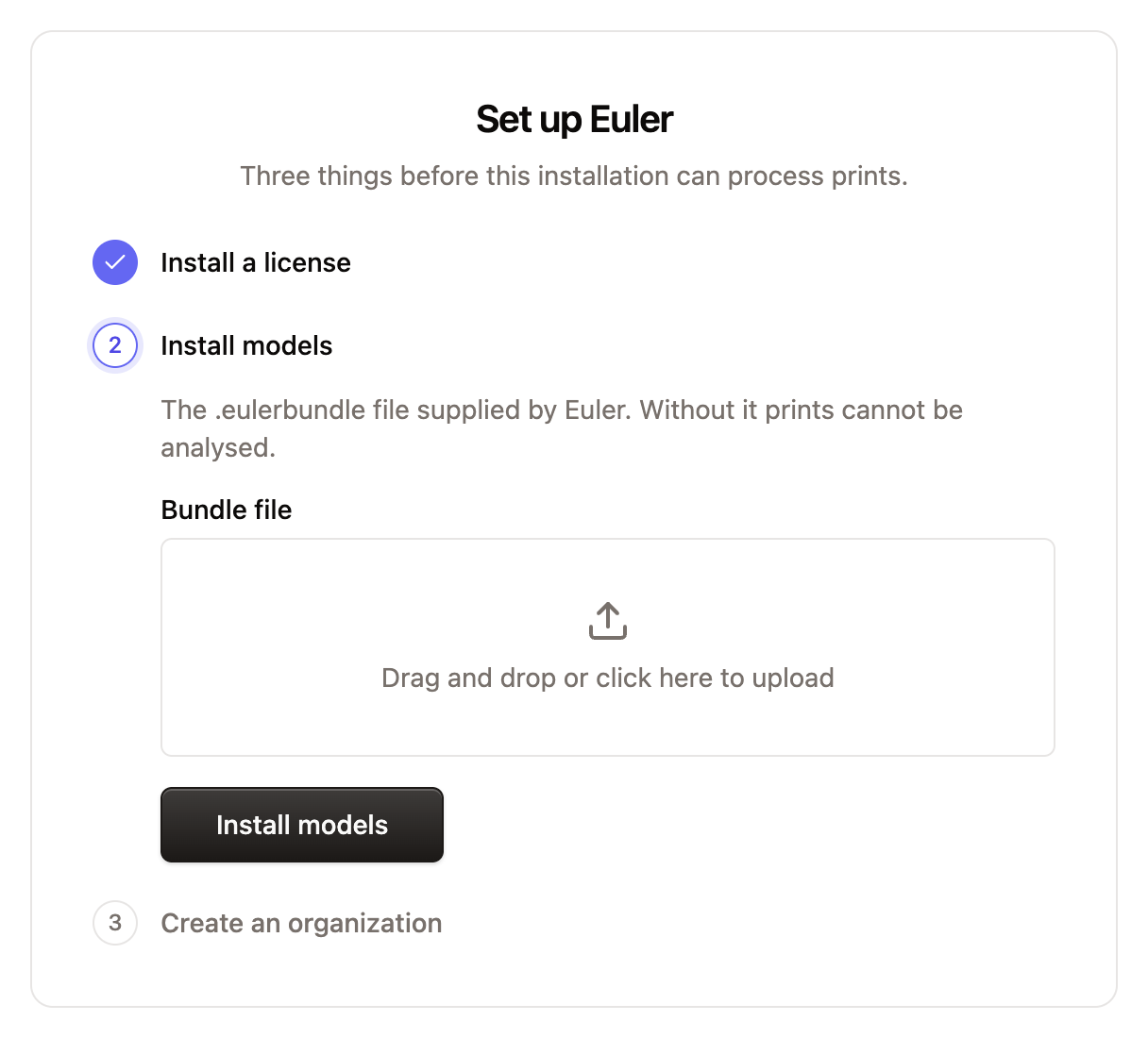
A new installation of Euler needs three things before it can analyze prints: a license, the analysis package from Euler and an organization. When you first sign in as the site administrator, Euler opens Set up Euler and walks you through them.
Only site administrators can complete the setup. Anyone else who signs in before it is done sees Setting up: "This installation is still being set up. Check back once your administrator has finished."
Before you start, have the two files Euler sent you for this installation: the license file (ending
in .lic) and the analysis package (ending in .eulerbundle).
Install a license
Choose the .lic file and click Install license. A tick appears next to the step when the
license is installed. If Euler says the license is invalid, check that you picked the file issued for
this installation, or contact Euler.
Install models
Choose the .eulerbundle file and click Install models. This installs the analysis package that lets
Euler find defects in your prints. Until it is installed, prints can be uploaded but not analyzed.
Installing can take a little while for a large package. If Euler reports a problem with the file, check that it is the file Euler sent you and that the download finished, or contact Euler.
Create an organization
Enter the Organization name, Organization username and Organization timezone, then click Create organization. See Creating an organization for what each field does.
When all three steps are done, Euler opens the new organization. Next:
- Create users for your team and add them to the organization.
- Create a device and set up Euler Connect.