Site administration
Manage users, installed models and the license on your own installation of Euler.
Site administration is where you look after a whole installation of Euler: its users, the analysis package it runs and its license. It exists only on installations your company runs itself.
Only users with the Site Manager role can open site administration. Open it from Site administration in the sidebar.
Site managers can also create organizations, with New organization in the organization switcher. How many organizations and devices you can have depends on your license.
Users
UsersAll users lists everyone on the installation with their name, email address and role. Use Search by name or email... to find someone.
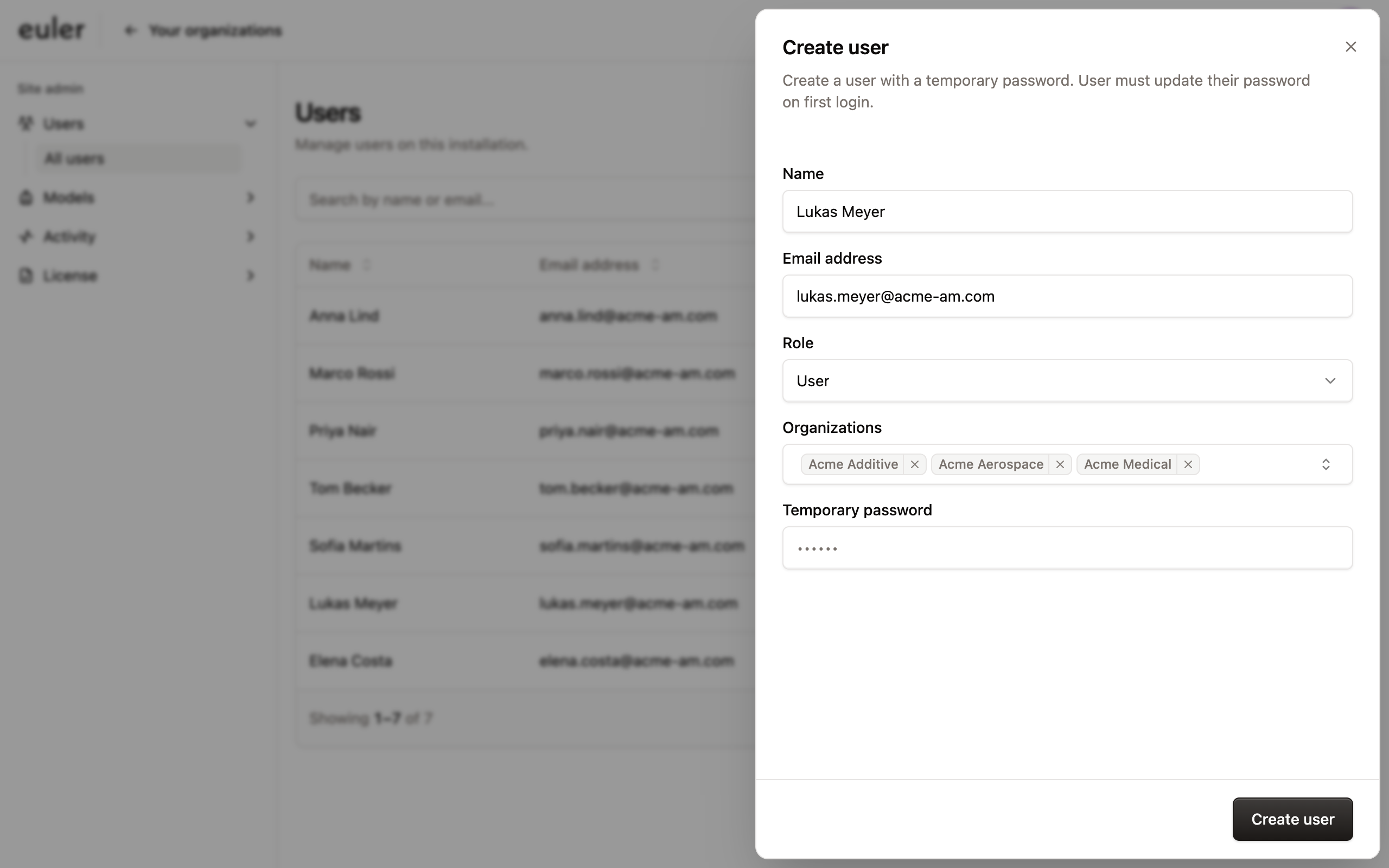
Create a user
- Click Create.
- Enter the Name and Email address.
- Choose a Role: User for most people, or Site Manager for someone who also runs the installation.
- Under Organizations, choose the organizations the person should join. They join as members. An organization admin can make them an admin.
- Enter a Temporary password of at least 8 characters and click Create user.
Give the person the temporary password. They choose their own password the first time they sign in.
Change a user
Use the actions on a user's row:
- Change role: switch between User and Site Manager.
- Set temporary password: give someone a new password, for example if they forgot theirs. They must change it when they next sign in.
- Remove: delete the user from the installation.
The installation always needs at least one site manager. Euler won't let you remove or demote the last one.
Installed models
ModelsInstalled models lists the analysis packages installed on this installation, with their Model ID and when they were installed. The Model ID is the one shown on prints and reports.
When Euler sends you a new analysis package (a file ending in .eulerbundle):
- Click Install bundle to open Install model bundle.
- Choose the file under Bundle file and click Install.
When it is done, Euler shows the new Model ID and uses it for prints from then on. If Euler reports a problem with the file, check that the download finished, or contact Euler.
Activity
Use Activity to check whether uploads and analysis succeeded across all organizations.
- Uploads lists prints uploaded to the installation, newest first, with the device, status, start time and how long it took. Filter by In progress or Failed. Click a row for details, including any error. You can Retry a failed upload without uploading the images again.
- Analysis lists analysis of prints, newest first, with the Model ID, status and start time. Filter by Running or Failed. Click a row for details, or Open print job.
If something keeps failing, copy the error from the details and send it to Euler.
License
The License page shows the license installed on this installation: its License ID, the number of devices and organizations it allows, and when it was issued and Expires. If something is wrong, it shows No license installed, License expired or License invalid.
To install a new license, choose the .lic file Euler sent you and click Update license.
From 45 days before the license expires, site managers see a banner at the top of the app with the number of days left and a link to Update license. Contact Euler for a new license before then.