Reading outlier results
Read the outlier map, see which prints stand out, and which defect types make them different.
The results of an outlier analysis open in a panel with the Outlier map on one side and a summary of the analysis on the other.
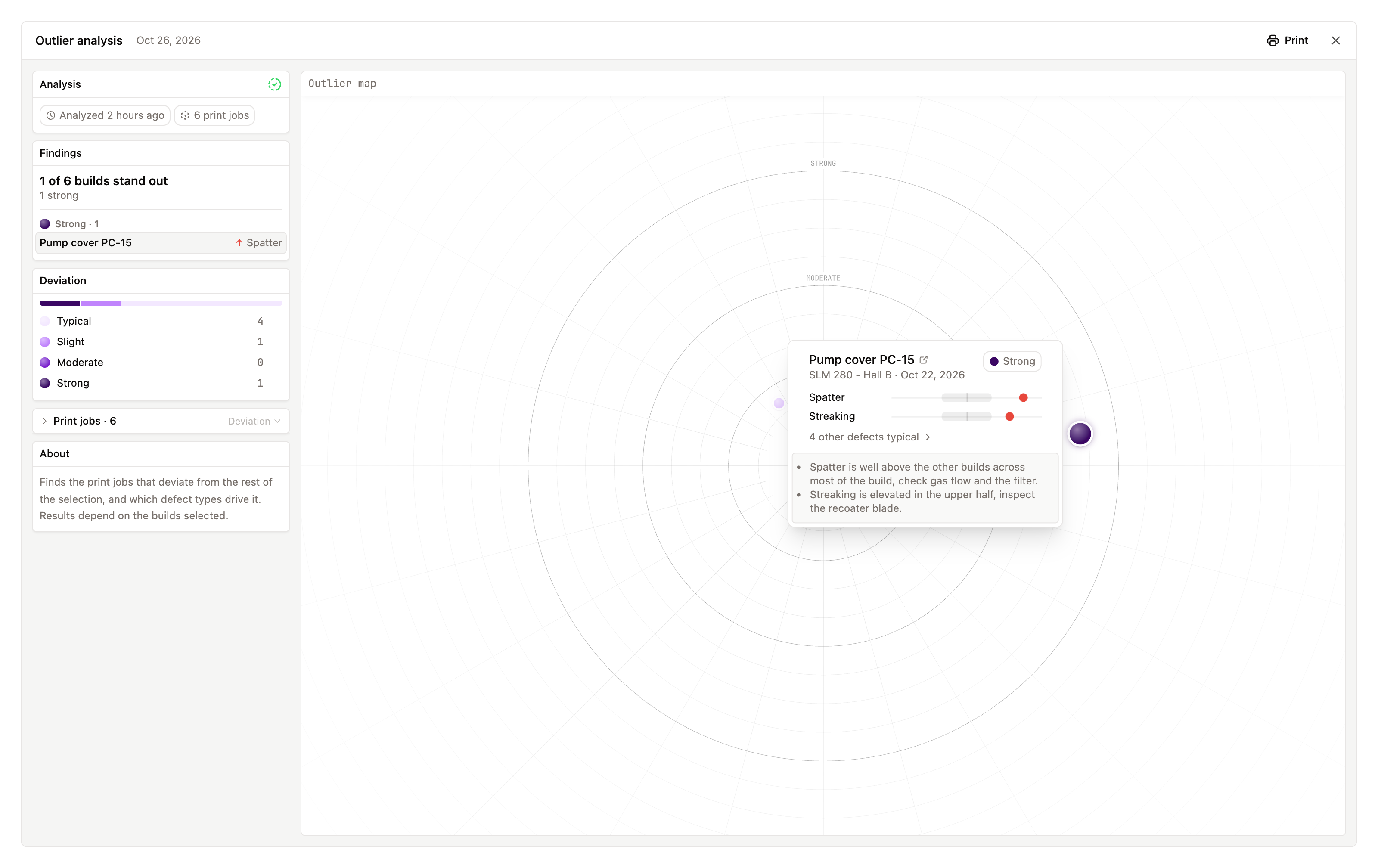
Outlier map
Each print is a point on the map. The center is what is typical for the group, and the further out a point sits, the more that print stands out. The rings mark the deviation levels. Prints that sit close together differ from the group in a similar way.
Prints that stand out are labeled with their name. Hover over any other point to see its name. Points that overlap are grouped and spread out when you hover over them. Click a point to see that print's details.
Deviation
Every print gets one of four deviation levels:
- Typical: in line with the rest of the group.
- Slight: a little different. Worth keeping an eye on.
- Moderate: clearly different from the rest.
- Strong: far from the rest.
Only Moderate and Strong prints count as standing out. A print marked Not analysed could not be compared, for example because it has no defects to compare.
The Deviation card shows how many prints have each level. Click a level to hide or show those prints on the map.
Standing out is not always bad. A print can also stand out because it has fewer defects than the others.
Findings
The Findings card sums up the analysis, for example "2 of 12 builds stand out", and lists those prints, strongest first. Next to each print is the defect type that differs most: a red up arrow means more of it than the group, a green down arrow means less. Click a print to select it on the map.
A print's details
For the selected print, each defect type has its own row. The shaded band is the typical range for the group, and the dot shows where this print falls:
- Red: more of this defect type than the group.
- Green: less of this defect type than the group.
- Gray: within the typical range.
Defect types in the typical range are folded away; click other defects typical to show them. Click a defect type to open that print on the Heatmap tab, showing only that defect type. Below the rows is a short written summary of why the print stands out.
Print or save the results
Click Print, or press Ctrl + P (⌘ + P on a Mac), to print the map and the list of compared prints, or save them as a PDF.
If the analysis fails
If the map shows Analysis failed, click Retry to run it again with the same prints. If it fails again, contact Euler.