Organization
Your account
Change your name, avatar, email address and password.
Your account settings apply to you in every organization you belong to. Open them from User settings at the bottom of the sidebar.
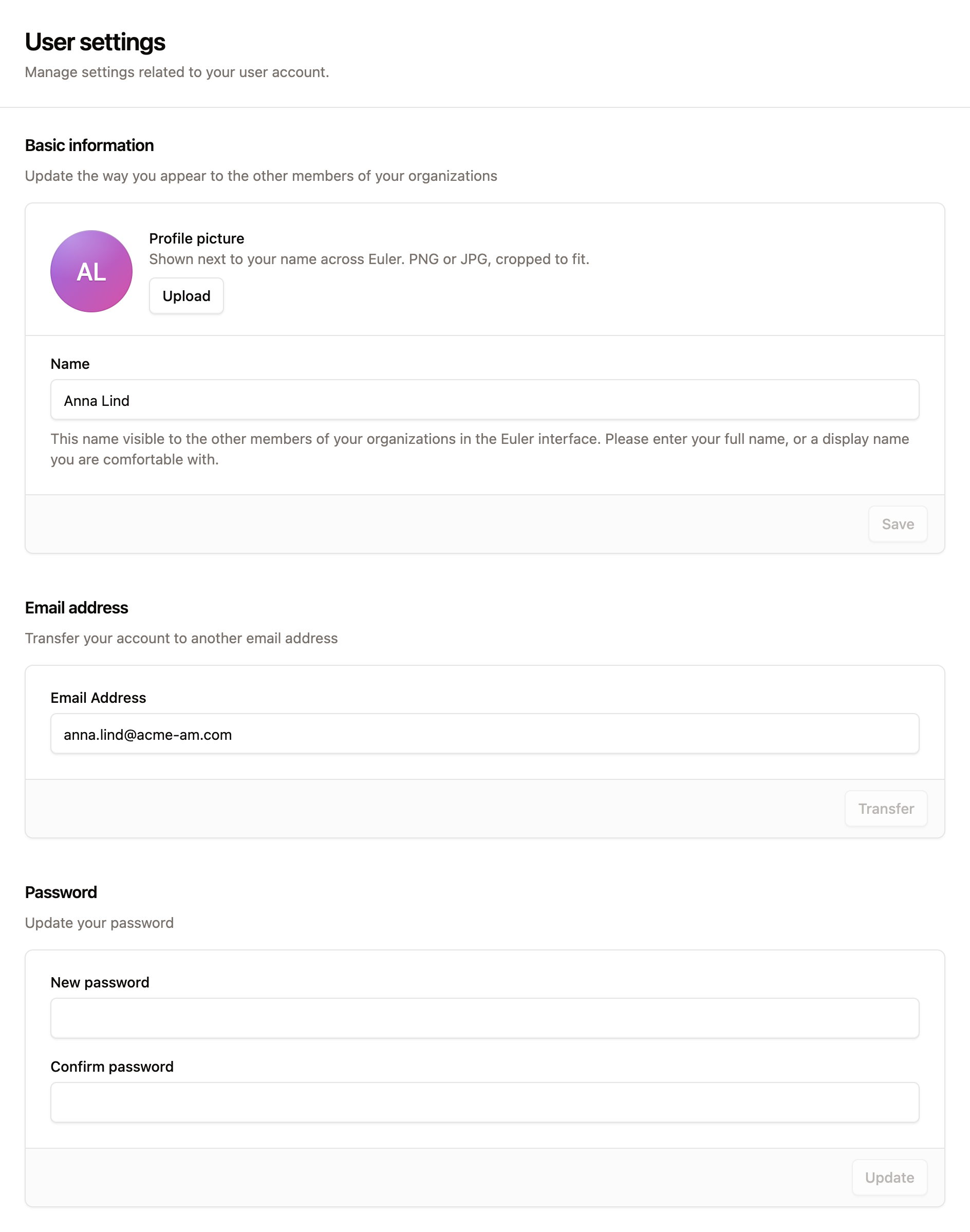
Basic information
- Name: the name other members of your organizations see, for example next to your comments.
- Avatar: a picture shown next to your name.
Click Save to keep your changes.
Change your email address
- Under Email address, enter the new address and click Transfer.
- Euler sends a message to the new address. Open the link in it and confirm your password. The link works for 30 minutes.
Until you confirm, you keep signing in with your old address.
Change your password
Under Password, enter a New password, enter it again in Confirm password and click Update.
Forgot your password
- On the sign-in page, click Forgot your password?.
- Enter your Email and click Send reset link. Euler sends an email if an account with that address exists.
- Open the link in the email. Enter your Email address and a New password, complete the Verification check, then click Reset password.
Some installations of Euler can't send email. There you can't reset a forgotten password or change your email address yourself. Ask your site administrator to set a temporary password for you. See Site administration.
Notifications
Your notification choices are set per organization, in SettingsNotifications. See Notifications.